Buffer-Free 4K Streaming: 7 Powerful Tips for Smooth Play
Published on January 31, 2026 • 15 min read
Table of Contents
Introduction
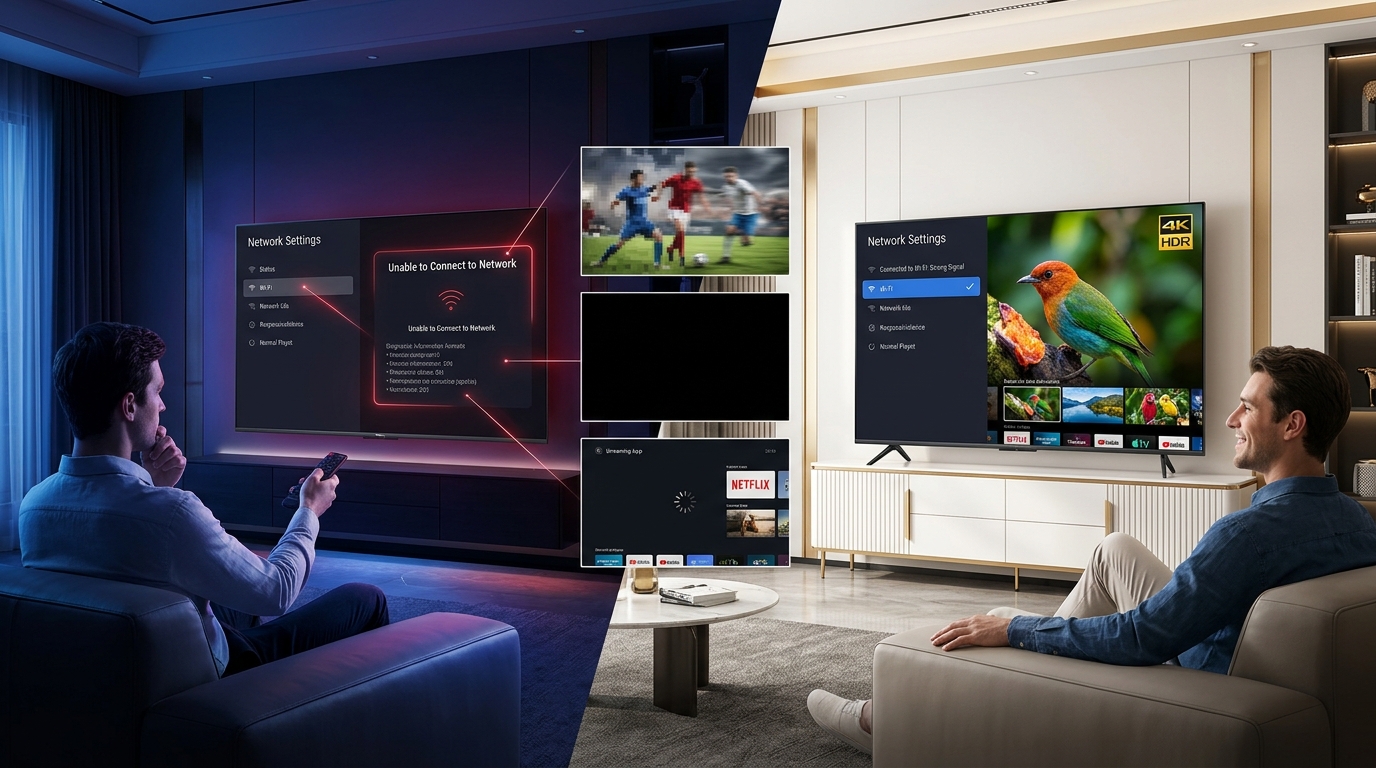
We have all been there: you are settled in for movie night, the popcorn is ready, and the climax of the film is approaching. Suddenly, the screen freezes, and the dreaded spinning wheel appears, killing the mood instantly. In the era of Ultra High Definition (UHD), this interruption is becoming all too common.
Streaming in 4K offers four times the resolution of 1080p HD, delivering breathtaking clarity and vibrant colors. However, this jump in quality demands significantly more data, putting a massive strain on your home network. If your infrastructure isn’t up to the task, you will face constant stuttering, quality drops, and buffering.
Achieving buffer-free 4K streaming isn’t just about paying for the fastest internet package available. It requires a holistic approach that includes upgrading hardware, choosing the right connection type, and managing your network traffic. This guide will walk you through every step to ensure your movie nights are never interrupted again.
What Is Buffer-Free 4K Streaming and Why Is It So Hard?
Understanding 4K Resolution and Bitrates
To fix buffering, you must first understand what you are trying to stream. 4K UHD consists of a resolution of 3840 x 2160 pixels, which is roughly 8.3 million pixels per frame. Pushing this amount of visual information requires a high “bitrate,” which is the amount of data processed per second.
While a standard HD stream might only use 5 Megabits per second (Mbps), a high-quality 4K stream from Netflix or Disney+ can demand anywhere from 15 to 25 Mbps. Blu-ray discs are even higher, often exceeding 50 Mbps, but streaming services compress this data to make it manageable. Buffer-free 4K streaming relies on your network maintaining this high bitrate consistently, not just in bursts.
How Buffering Works
Buffering is actually a helpful process designed to prevent stuttering. When you press play, your device pre-loads a certain amount of video data into a temporary storage area called a “buffer.” This allows playback to continue smoothly even if your internet speed dips for a few seconds.
The problem arises when playback speed exceeds your download speed. If your TV “eats” the data faster than your router can “feed” it, the buffer empties. The video pauses, and the system frantically tries to download more data to fill the reservoir again.
The “Weakest Link” Theory
Your streaming experience is only as strong as the weakest link in your digital chain. You might have a blazing-fast Gigabit internet plan, but if your router is five years old, you will still buffer. Similarly, a top-tier router cannot fix a slow modem or a cheap HDMI cable.
To achieve buffer-free 4K streaming, every component must be capable of handling high-bandwidth traffic. This includes your ISP, modem, router, Ethernet cables, and the streaming device itself. Identifying your specific bottleneck is the first step toward a solution.
Internet Speed Requirements for 4K Streaming
Minimum vs. Recommended Speeds
Most streaming services list “minimum” speed requirements, but these are often misleadingly low. For example, Netflix officially recommends 15 Mbps for 4K streaming, while YouTube suggests 20 Mbps. These numbers assume you are doing absolutely nothing else on your network.
In the real world, you need overhead to account for natural speed fluctuations and background activity. For a truly stable experience, we recommend a consistent speed of at least 50 Mbps to 100 Mbps specifically for the streaming device. This ensures that even if the speed dips, your stream remains clear and uninterrupted.
Streaming Service
Official Minimum Requirement
Real-World Recommendation
Netflix
15 Mbps
50 Mbps
Disney+
25 Mbps
50-75 Mbps
YouTube
20 Mbps
50 Mbps
Apple TV+
25 Mbps
75 Mbps
Amazon Prime
15 Mbps
50 Mbps
Bandwidth Considerations for Multi-User Households
If you live alone, a 50 Mbps plan might suffice, but families need much more. Bandwidth is like a pizza; the more people who want a slice, the less there is to go around. If two people are watching 4K streams while another is gaming, your bandwidth usage skyrockets.
To calculate your needs, multiply the number of simultaneous 4K streams by 25 Mbps, then add 50 Mbps for overhead. For a family of four, a 200 Mbps plan is often the sweet spot for buffer-free 4K streaming. This prevents “bandwidth vampires” like smartphones and tablets from choking your movie stream.
Upload Speed vs. Download Speed
Marketing materials often confuse customers by highlighting “symmetrical” speeds, where upload equals download. For consuming content like movies, download speed is the king. Upload speed is primarily relevant for sending data, such as during Zoom calls or when broadcasting live to Twitch.
However, a severely low upload speed (under 5 Mbps) can still cause issues. Your device needs to send small acknowledgement signals (ACK packets) back to the server to confirm data was received. If your upload is clogged, these requests get delayed, eventually stalling your download and causing buffering.
Hardware Essentials for Smooth 4K Playback
The Best Routers for 4K Streaming (2025/2026 Picks)
The router provided by your Internet Service Provider (ISP) is usually the cheapest model they can buy in bulk. These units often struggle to handle multiple high-bandwidth streams simultaneously. Upgrading to a modern router is the single most effective upgrade for buffer-free 4K streaming.
Look for routers supporting Wi-Fi 6 (802.11ax) or the newer Wi-Fi 7. These standards are designed specifically to handle congestion in environments with many devices. Top picks for 2026 include the TP-Link Archer AXE75 for value and the Netgear Nighthawk RS700S for premium performance.
Top Features to Look For:
MU-MIMO: Allows the router to talk to multiple devices at once, rather than one by one.
OFDMA: Breaks data into smaller packets to send to multiple devices efficiently.
Tri-Band: Offers an extra 5GHz or 6GHz band dedicated to streaming or gaming.
Modems and Gateways
Your modem is the gateway to the internet, and an outdated one can throttle your speeds before they even reach the router. If you have cable internet, ensure your modem supports DOCSIS 3.1. This standard allows for gigabit speeds and handles network congestion much better than the older DOCSIS 3.0.
Be wary of modems using the Intel Puma 6 chipset, which was notorious for causing latency spikes. These spikes might not affect web browsing, but they can wreak havoc on real-time streaming and gaming. Research your specific model number to ensure it is free from known hardware defects.
Streaming Devices: Stick vs. Box
Not all streaming devices are created equal; the processor inside matters immensely. “Stick” form factors (like the basic Fire TV Stick or Roku Stick) often have slower processors that struggle with high-bitrate 4K decoding. This can result in sluggish menu navigation and slower buffering times.
“Box” devices, such as the Apple TV 4K or Nvidia Shield TV Pro, have powerful processors comparable to modern smartphones. They can decode complex video codecs like HEVC and AV1 effortlessly. Investing in a premium box is often the difference between a glitchy interface and a smooth, cinematic experience.
The Importance of HDMI Cables
Believe it or not, the cable connecting your device to your TV can cause signal dropouts. 4K HDR requires a massive amount of bandwidth to travel through that wire. Old HDMI cables (Standard or High Speed) max out at 10.2 Gbps, which isn’t enough for 4K at 60Hz with HDR.
You need a Premium High Speed (18 Gbps) HDMI cable for standard 4K HDR. If you are gaming in 4K at 120Hz, you need an Ultra High Speed (48 Gbps) cable. If your screen goes black for a second and then returns, it is almost certainly a bad HDMI cable.
Connection Type: Ethernet vs. Wi-Fi for 4K
Why Ethernet Is King for Buffer-Free 4K Streaming
In the world of networking, wires always win. Ethernet offers a dedicated, shielded path for your data, completely immune to interference from microwaves, baby monitors, or your neighbor’s Wi-Fi. It provides the lowest latency and most consistent speed possible.
For buffer-free 4K streaming, hardwiring your TV or streaming box is the gold standard. Use Cat6 cables, which support speeds up to 10 Gbps and are shielded better than older Cat5e cables. Even a long, flat Ethernet cable run along the baseboard is superior to the best Wi-Fi connection.
Optimizing Wi-Fi if You Can’t Use Wires
If running a cable is impossible, you must optimize your wireless environment. First, ensure your streaming device is connected to the 5GHz band, not the 2.4GHz band. The 2.4GHz band is crowded and slow, often capping out around 50-70 Mbps in real-world use, which is borderline for 4K.
The 5GHz band is faster and less congested but has a shorter range. Place your router as centrally as possible, and elevate it on a shelf rather than hiding it in a cabinet. Line-of-sight is the best friend of a strong Wi-Fi signal.
Mesh Wi-Fi Systems
For larger homes where the router is far from the TV, a Mesh Wi-Fi system is a great solution. Unlike a simple range extender, which cuts your speed in half, a Mesh system uses multiple nodes to create a seamless blanket of coverage.
Systems like the Eero Pro 6 or Netgear Orbi use a dedicated “backhaul” channel to communicate between units. This ensures that the node near your TV receives full speed from the main router. Placing a mesh node in your entertainment room and wiring your TV to that node is a fantastic compromise.
How to Optimize Your Home Network for Streaming
Configuring Quality of Service (QoS)
Most modern routers have a feature called Quality of Service (QoS). This allows you to tell the router which devices are the most important. By prioritizing your Apple TV or Roku, you ensure it gets bandwidth first, before your phone or laptop.
How to set up QoS:
Log in to your router’s admin panel (usually 192.168.0.1 or 192.168.1.1).
Look for a “QoS” or “Prioritization” tab.
Enable QoS and find the list of connected devices.
Set your streaming device to “High” or “Highest” priority.
Managing Network Congestion
Identify the “bandwidth vampires” on your network that can disrupt buffer-free 4K streaming. Cloud backup services like Dropbox or Backblaze often run silently in the background, uploading large files and choking your connection. Similarly, game consoles downloading massive updates can easily overwhelm your available bandwidth, making buffer-free 4K streaming impossible.
Schedule these heavy tasks for the middle of the night (for example, between 2 AM and 6 AM) to protect buffer-free 4K streaming during peak hours. Most game consoles and backup tools include built-in schedulers that make this easy. This simple adjustment frees up your entire connection in the evening, ensuring consistent buffer-free 4K streaming when it matters most.
Changing DNS Servers
Your ISP’s Domain Name System (DNS) server acts as the phonebook of the internet, translating “Netflix.com” into an IP address. ISP DNS servers are often slow and unreliable. Switching to a faster, public DNS can improve the “snappiness” of loading streams.
We recommend using Cloudflare (1.1.1.1) or Google Public DNS (8.8.8.8). You can change this setting in your router so it applies to every device in your house. While it won’t increase your raw download speed, it reduces the time it takes to start a video.
Troubleshooting Common Buffering Issues
Why Does My TV Keep Buffering? (Quick Fixes)
Sometimes the issue is software “rot” on your smart TV, which can prevent buffer-free 4K streaming. Apps gradually build up cache files that may become corrupted over time. Go into your TV’s settings, open the app list, and select “Clear Cache” for streaming apps like Netflix or YouTube to restore buffer-free 4K streaming.
If that doesn’t work, perform a cold boot to regain buffer-free 4K streaming. Modern TVs rarely power down completely and instead remain in standby mode. Unplug the TV from the wall outlet and wait 60 seconds to force a full system reload. This clears memory leaks and background processes, often resolving buffering issues and restoring buffer-free 4K streaming.
Diagnosing ISP Throttling
ISPs sometimes intentionally slow down specific types of traffic, such as streaming video, to manage network load. This is called throttling. If your speed test shows 200 Mbps but Netflix buffers at 480p, you might be a victim.
To test this, run a speed test on a site like Fast.com (owned by Netflix) and compare it to Speedtest.net. If Speedtest.net shows 200 Mbps but Fast.com only shows 5 Mbps, your ISP is likely throttling video traffic.
Wi-Fi Channel Interference
If you live in an apartment complex, your neighbors’ routers might be shouting over yours, making buffer-free 4K streaming difficult. Wi-Fi channels are like lanes on a highway; if everyone is in Lane 6, traffic slows to a crawl. To improve buffer-free 4K streaming, you can use a free app like “Wi-Fi Analyzer” on Android or built-in wireless diagnostic tools on macOS to scan the airwaves.
Look for a channel with the fewest competing networks to support buffer-free 4K streaming. Log into your router settings and manually switch your 5GHz Wi-Fi from “Auto” to that specific open channel. This simple adjustment can instantly improve signal stability and throughput, helping you achieve buffer-free 4K streaming consistently.
Advanced Tips for Enthusiasts
Using a VPN to Bypass Throttling
If you confirmed ISP throttling in the previous section, a Virtual Private Network (VPN) is the solution. A VPN encrypts your traffic, hiding it from your ISP. If they can’t see that you are streaming Netflix, they can’t throttle it based on content.
However, encryption requires processing power, which can slightly lower your top speed. Choose a fast VPN protocol like WireGuard, which is lightweight and efficient. Use a premium VPN service known for speed, such as NordVPN or ExpressVPN, rather than free alternatives that will likely make buffering worse.
Browser vs. App Streaming
If you stream on a PC, avoid using web browsers like Chrome or Firefox for 4K viewing. Due to Digital Rights Management (DRM) restrictions, most browsers limit Netflix and Prime Video to 720p or 1080p resolution, meaning true 4K content simply won’t play as part of anti-piracy protections, making buffer-free 4K streaming impossible in most browsers.
Instead, always use the native applications from the Microsoft Store or the macOS App Store to achieve buffer-free 4K streaming. These apps include the required security certificates to unlock full 4K resolution and typically support hardware acceleration, which is essential for buffer-free 4K streaming.
Future-Proofing: Wi-Fi 7 and 8K
While 4K is the current standard, 8K is on the horizon. 8K streaming will likely require speeds of 80-100 Mbps per stream. To future-proof your home, consider networking gear that supports Wi-Fi 7.
Wi-Fi 7 introduces “Multi-Link Operation” (MLO), allowing devices to connect to the 2.4GHz, 5GHz, and 6GHz bands simultaneously. This aggregates bandwidth and virtually eliminates latency, ensuring your network is ready for whatever resolution comes next.
Frequently Asked Questions (FAQs)
How many Mbps do I need for buffer-free 4K streaming?
While 25 Mbps is the official minimum, we recommend at least 50 Mbps for a stable single stream. For a household with multiple users, a plan of 200 Mbps or higher is ideal to prevent congestion.
Does a better HDMI cable stop buffering?
An HDMI cable cannot fix internet buffering, but it can fix black screens and stuttering. If your cable cannot handle the bandwidth of 4K HDR, the picture will cut out entirely or flicker. Use a “Premium High Speed” cable.
Can a VPN stop buffering?
Yes, but only if the buffering is caused by ISP throttling. If your internet is slow due to poor signal or congestion, a VPN adds overhead and might actually make it slower. Test your speeds first.
Why does Netflix buffer at 99%?
This is often a device-side issue rather than a network one. It usually means the app is struggling to hand off the loaded data to the video player. A system restart or clearing the app cache usually resolves this specific stall.
Is Wi-Fi 6 necessary for 4K?
It is not strictly necessary, but it helps immensely. Wi-Fi 5 (AC) is capable of 4K speeds, but Wi-Fi 6 handles multiple devices much better. If you have a smart home with 20+ devices, Wi-Fi 6 is highly recommended.
Conclusion
Achieving buffer-free 4K streaming is a science, not magic. It requires a solid foundation: a high-speed internet plan, a modern router, and the right cables. For truly buffer-free 4K streaming, it also requires ongoing maintenance, like checking for channel interference and keeping your devices updated.
Start by auditing your current setup. Run a speed test, check your router model, and verify your connection type to ensure your network can handle buffer-free 4K streaming. Often, a single change—like switching from Wi-Fi to Ethernet or upgrading an old modem—can unlock the crystal-clear, uninterrupted experience you paid for.
Don’t let buffering ruin the climax of your next movie. Take control of your network today, and enjoy buffer-free 4K streaming exactly as it was meant to be seen.