Firestick IPTV Setup: 7 Best Steps for Fast Streaming
Published on January 23, 2026 • 22 min read
Table of Contents
Understanding Firestick IPTV Setup Fundamentals
What Is a Firestick IPTV Setup and How Does It Work?
Cutting the cord on traditional cable television has never been easier thanks to modern digital media streaming devices. A proper Firestick IPTV Setup transforms your standard Amazon streaming stick into an expansive television portal by delivering live broadcasts directly over your internet connection. Instead of relying on satellite dishes or coax cables, your device decodes real-time media streams using specialized application software.
The underlying architecture relies on a clear distinction between physical streaming hardware, client application interfaces, and server data feeds. Your Amazon device acts as the processing engine that renders video signals sent from cloud servers hosting live television channels. Choosing the right player software ensures that channel lists, video-on-demand assets, and electronic program guides display seamlessly on your home screen.
Many household users discover that switching to digital streams drastically cuts monthly entertainment costs while offering significantly broader global channel access. Navigating to the leading Nexott streaming platform provides access to high-definition broadcasting infrastructure engineered for fast load times. Integrating high-speed media streams with your Firestick gives you instant access to global news, premium live sports, and thousands of movies.
Essential Prerequisites Before Beginning Your Firestick IPTV Setup
Before jumping into software installations, you must verify that your hardware and network infrastructure meet optimal performance standards. Running high-definition or 4K streams requires processing power found in modern streaming devices like the Fire TV Stick 4K or 4K Max. Older models with limited memory may struggle to load large channel playlists, causing unnecessary interface lag during daily use.
Your household internet bandwidth plays a pivotal role in maintaining crisp visual clarity without irritating playback pauses. Industry benchmarks recommend a minimum download speed of 25 Mbps for uncompressed 1080p high-definition streams and 50 Mbps for 4K Ultra HD broadcasts. Additionally, ensuring at least 1GB of free internal storage space on your Firestick prevents performance bottlenecks when caching channel guide data.
Hardware / Requirement
Minimum Specification
Recommended Specification
Amazon Device
Fire TV Stick Lite / HD
Fire TV Stick 4K Max / Fire TV Cube
Internet Bandwidth
15 Mbps (Standard HD)
50+ Mbps (4K Ultra HD & Multi-room)
Available Storage
500 MB Free Space
1.5 GB+ Free Space
Remote Controller
Standard Alexa Voice Remote
Voice Remote Pro with shortcut buttons
Network Connection
2.4 GHz Wi-Fi
5 GHz Wi-Fi or Wired Ethernet Adapter
Gathering your provider account details in advance streamlines the overall software activation process. Most service providers deliver account access through Xtream Codes API credentials or direct server M3U links. Evaluating transparent competitive IPTV subscription prices allows you to select a plan that aligns perfectly with your channel requirements and household budget.
Legal and Privacy Considerations for Any Firestick IPTV Setup
Understanding the regulatory landscape surrounding digital streaming ensures that your entertainment habits remain secure and compliant. Firestick IPTV Setup itself is completely legal because media player applications function strictly as empty containers designed to play authorized user-provided streams. Issues arise only if individuals attempt to access copyrighted material without proper broadcasting authorization from content owners.
Verifying the source of your content playlists guarantees that you maintain compliance with regional copyright standards. Reputable streaming providers maintain transparent terms of service, clear privacy protocols, and dedicated customer assistance channels. Protecting your personal identification details when registering for accounts helps prevent unwanted data exposure across third-party marketing networks.
Digital privacy tools like encrypted network tunnels safeguard your streaming habits from aggressive corporate data tracking. Many Internet Service Providers actively monitor network bandwidth patterns to identify continuous high-volume media transfers. Employing strict security protocols during your installation ensures your streaming sessions remain entirely private and free from artificial speed caps.
Preparing Your Amazon Device for Firestick IPTV Setup
Step 1: Navigating Fire TV Settings for Firestick IPTV Setup
Preparing your Amazon streaming device requires modifying a few default system configurations before sideloading external applications. Begin by powering on your television and navigating directly to the gear icon on the far right side of the main home menu screen. Select this icon to open the complete system settings menu on your Firestick.
Scroll down through the setting tiles and click on the option labeled My Fire TV. This section houses critical internal system information, storage management controls, and developer access settings. Take a moment to check your device storage under the About section to confirm you have adequate space available for new software installations.
It is also beneficial to verify that your Firestick is running the latest Amazon software release. Select System Update within the About menu to download and apply any pending operating system patches. Keeping your system firmware fully updated prevents unexpected application crashes and compatibility issues during the media player configuration process.
Step 2: Unlocking Developer Options and Unknown Sources for Firestick IPTV Setup
Amazon updated recent Fire TV operating systems to hide the Developer Options menu by default on newer devices. To reveal this hidden menu, select My Fire TV from Settings, open the About tab, and highlight your specific device name. Press the center Select button on your remote rapidly seven times until a message appears stating you are already a developer.
Press the Back button on your remote controller once to return to the main My Fire TV menu screen. You will now notice that Developer Options is visibly listed directly below the About menu item. Click into Developer Options to manage third-party software installation permissions for your device.
Toggle the setting labeled Install Unknown Apps or Apps from Unknown Sources to the ON position. This vital modification grants your streaming stick permission to run application files downloaded outside the official Amazon Appstore. Disabling restrictive security prompts ensures seamless sideloading for your preferred media management players.
Step 3: Installing the Downloader App to Enable Firestick IPTV Setup
With developer permissions unlocked, you require a reliable utility tool to retrieve installation packages directly from web URLs. Navigate back to the Firestick home screen and click on the Search option located under the Find tab. Type Downloader into the search bar using your remote control or voice search button.
Select the orange Downloader app icon from the search results grid and click the Download button. The device will automatically fetch and install the application directly from the Amazon Appstore within a few seconds. Once the installation completes, launch Downloader and grant it permission to access photos and media files on your storage drive.
Inside Downloader, navigate to the Developer Options menu in your Firestick settings once more to explicitly enable unknown sources for Downloader itself. This ensures the utility application can execute APK installation files without being blocked by system security prompts. You are now fully prepared to download and configure your primary media player applications.
Step-by-Step Installation Methods for Firestick IPTV Setup
Method 1: Firestick IPTV Setup Using IPTV Smarters Pro
IPTV Smarters Pro remains one of the most accessible and user-friendly media players available for streaming hardware. Open the Downloader application on your Firestick and highlight the central URL entry field. Type the direct numeric download code or official APK link into the bar and press Go to begin downloading.
Once the APK file finishes downloading, a prompt will automatically appear on your screen asking if you wish to install the application. Click Install and wait for the software file extraction process to finalize on your streaming stick. Click Open to launch IPTV Smarters Pro for the first time.
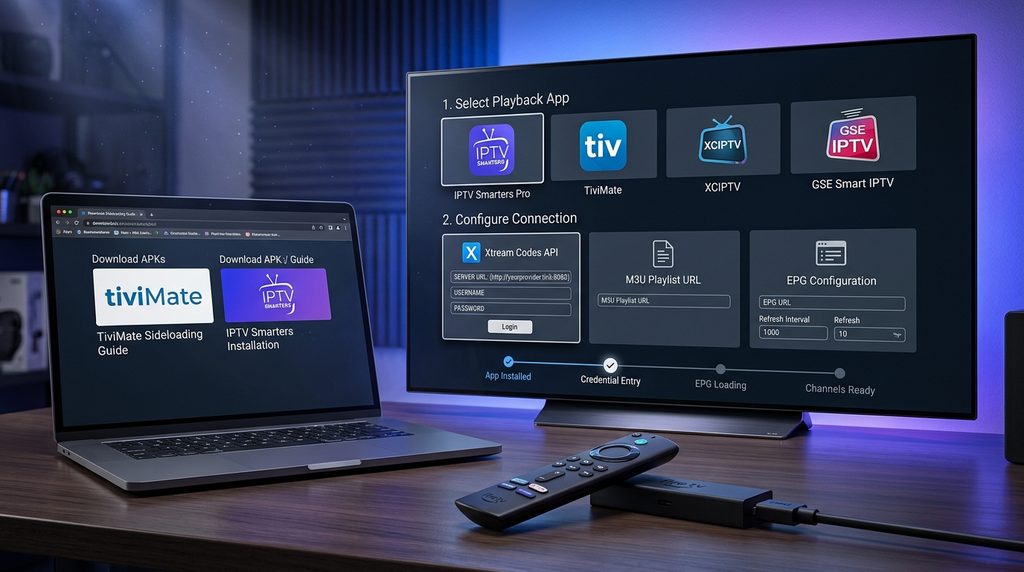
When prompted by the initial setup wizard, choose TV mode as your default user layout for easy navigation via remote control. Accept the software terms of agreement to arrive at the main login screen. You can now choose between adding your account details via Xtream Codes API or importing an M3U playlist link.
Method 2: Firestick IPTV Setup Using TiviMate Companion and Player
For users seeking an authentic cable-like grid experience, TiviMate stands out as an elite media player choice. Open Downloader and enter the verified numeric code for the TiviMate installation package. Click Install when the download completes, and then select Done to delete the raw APK file and conserve internal device memory.
To unlock advanced functionalities like scheduled recordings and multi-screen layouts, you should consult a comprehensive Nexott TiviMate integration guide. Upgrading to premium requires installing the TiviMate Companion app on an Android phone or PC emulator to manage your user license. Once unlocked, log in on your Firestick to activate the full interface feature set.
TiviMate excels at managing massive channel lists by creating customizable favorite groups and background guide updates. Its smooth rendering engine minimizes menu stuttering when navigating through complex broadcast schedules. Selecting a premium tier player elevates your overall viewing experience to match commercial broadcasting standards.
Method 3: Firestick IPTV Setup Using XCIPTV and GSE Smart IPTV
XCIPTV provides a sleek, modern media interface complete with integrated video players and built-in speed test features. Sideload XCIPTV by entering its direct URL code into Downloader and approving system permissions. The home dashboard displays prominent tiles for Live TV, Movies, Series, and Electronic Program Guides.
GSE Smart IPTV serves as another versatile alternative, offering extensive support for diverse playlist formats and external media players. It is particularly effective on older streaming hardware where resource management is crucial for smooth video playback. Users can seamlessly link external video engines such as VLC or MX Player inside GSE settings to resolve codec issues.
Comparing these application options allows you to select an interface tailored specifically to your visual preferences. Exploring affordable IPTV plans ensures you have robust playlist feeds ready to populate whichever media player software you select. Each player application handles playlist caching differently, making experimentation worthwhile for performance optimization.
Configuring Credentials During Firestick IPTV Setup
Entering Xtream Codes API Information in Firestick IPTV Setup
The Xtream Codes API method is widely considered the most reliable way to connect your streaming player to service servers. This protocol organizes channels, categories, on-demand video libraries, and program guide data into distinct, structured streams. Select the Xtream Codes login option inside your installed player app to open the login form.
Carefully type your assigned Server URL into the top entry field, ensuring you include the exact prefix http:// or https:// alongside port numbers. Enter your unique account Username and Password into their respective boxes using your remote keyboard. Typos are extremely common during this step, so double-check letter casing and symbols before clicking Submit.
Upon successfully verifying your account credentials, the application will begin downloading channel lists and category folders. Link your account to an active Nexott subscription account to guarantee fast connection handshakes with content servers. Allow a few moments for the complete channel index to finish building inside your local application memory.
Loading M3U URL Playlists for Firestick IPTV Setup
An alternative method for connecting your media player to live broadcasts involves utilizing an M3U playlist link. An M3U URL is a web address that points directly to a plain text file containing channel stream locations and stream metadata. Choose the M3U Playlist option on your player app screen to open the link entry box.
Because manual M3U URLs can be long and difficult to type using a Firestick remote, consider using shortener services or Fire TV remote apps on your mobile phone. Simply paste or type your custom Nexott M3U playlist link into the designated input field. Assign a recognizable playlist name to help identify the source if you manage multiple accounts.
Once loaded, you can utilize built-in playlist management tools to hide unused international channel groups. Streamlining your category lists speeds up daily menu browsing and reduces guide loading times significantly. Keeping your playlist clean ensures an organized television guide for everyone in your household.
Setting Up the Electronic Program Guide (EPG) in Firestick IPTV Setup
An Electronic Program Guide provides the familiar visual grid that shows what TV shows and sports events are airing in real time. While Xtream Codes logins usually configure program guides automatically, manual setups require linking an XMLTV URL. Open your player EPG settings and select Add EPG Source to insert your provider guide link.
Set the guide update interval to 24 hours to keep program listings current without placing unnecessary strain on background processor tasks. If program schedule times appear offset by several hours, access EPG settings to adjust the time zone shift value. Aligning local device time with stream metadata guarantees accurate program titles across all channel categories.
Unlocking premium streaming requires access to high-quality entertainment feeds across multiple genres. Subscribing to a Nexott IPTV premium streaming package ensures reliable electronic guide synchronization across all live events. Having reliable guide data enhances feature capabilities like setting show reminders and managing scheduled recordings.
Securing Your Connection During Firestick IPTV Setup
Why a VPN Is Necessary for Every Firestick IPTV Setup
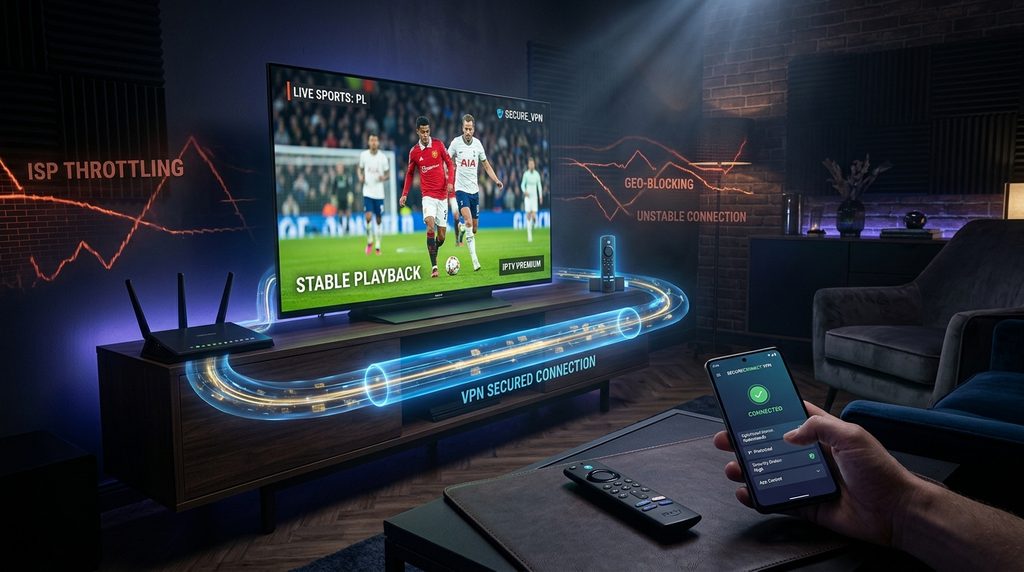
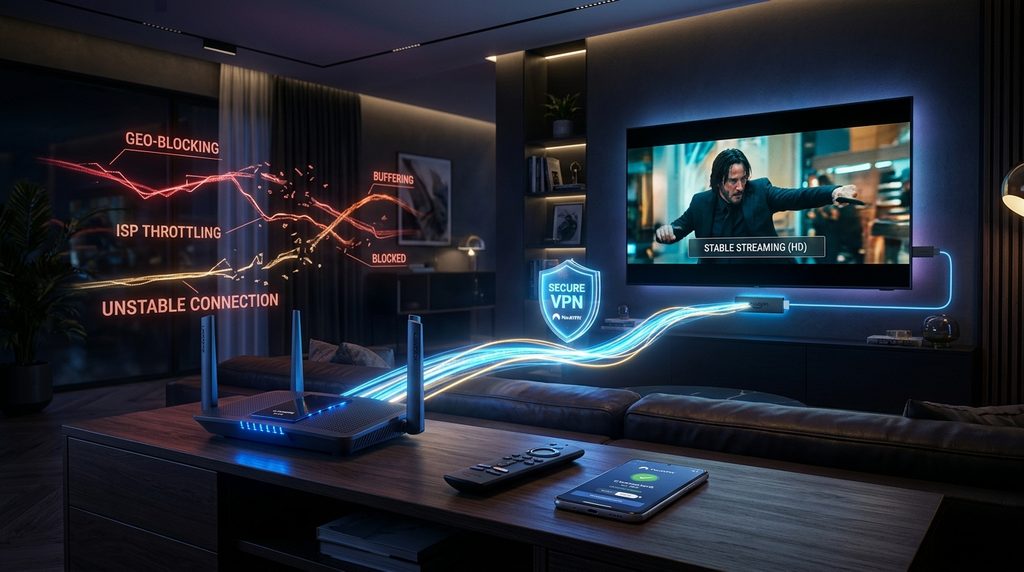
Maintaining an encrypted network tunnel is essential for preserving streaming privacy and preventing ISP interference. Internet Service Providers routinely deploy automated traffic inspection algorithms to identify continuous video downloads. When high-bandwidth streaming activity is detected, providers often throttle network speeds, leading to sudden buffering loops.
A Virtual Private Network (VPN) encrypts all data packets leaving your Firestick before they travel across local network infrastructure. This mathematical encryption prevents external observers from inspecting your online activity or identifying connected media servers. Encrypting your traffic guarantees that your internet connection delivers the full bandwidth speed you pay for.
Furthermore, security tunnels protect your personal IP address from exposure when connecting to external content delivery servers. Unprotected connections expose network metadata that can leave home networks vulnerable to privacy leaks. Utilizing robust encryption protocols guarantees complete digital anonymity whenever you stream media online.
How to Install and Configure a VPN for Firestick IPTV Setup
Installing protection on your Amazon Firestick is straightforward because top security providers offer native apps in the official Appstore. Return to the home screen search tab and type the name of your preferred security provider. Click Get to install the application directly onto your hardware drive.
Open the application, log into your user account, and open the app settings menu. Switch your connection protocol to WireGuard or Lightway to maximize download speeds while retaining strong data encryption. Enable the Auto-Connect on Device Startup feature so your Firestick secures itself automatically whenever powered on.
Select a nearby secure server location to achieve low latency speeds during live broadcasting sessions. Connect to the encrypted tunnel and verify that your public IP address reflects the new server region. With secure networking active, you can safely browse live feeds without risking privacy exposure or speed throttling.
Preventing ISP Throttling and Geo-Blocking in Firestick IPTV Setup
Regional content blocks sometimes restrict access to foreign sports broadcasts or international news channels based on viewer geography. By routing your internet connection through servers located in other countries, you bypass arbitrary geographical restrictions effortless. This global routing capability unlocks access to international broadcasting feeds from anywhere in the world.
Checking your effective connection speed before and after enabling network security helps identify potential speed drops. Run speed tests within the Downloader browser to confirm your encrypted speed exceeds 25 Mbps. If you encounter speed slowdowns, simply switch to another nearby server location within your VPN app.
Reviewing best IPTV deals helps you secure fast server feeds that function smoothly alongside network security tunnels. High-grade infrastructure ensures streaming stability regardless of peak evening internet traffic in your local neighborhood. Maintaining an encrypted network connection protects your media setups against outside interference permanently.
Advanced Optimization and Troubleshooting for Firestick IPTV Setup
Fixing Buffering and Playback Errors in Firestick IPTV Setup
Persistent buffering is almost always caused by local Wi-Fi congestion, insufficient memory, or ISP speed caps. If video streams freeze frequently, enter your media player settings and navigate to the Stream Format menu. Change the output format from TS (Transport Stream) to M3U8 or HLS to improve buffer resilience over wireless connections.
Increasing the video buffer size within player application settings gives your hardware additional time to pre-load incoming video data. You can also switch video decoding modes from Hardware (HW) to Software (SW) or Hardware+ if you encounter audio sync delays. Hardware decoding utilizes dedicated GPU chips, whereas software decoding relies on CPU processing to handle tricky media codecs.
Problem
Potential Root Cause
Recommended Solution
Endless Buffering
Wi-Fi interference / ISP throttling
Switch stream to M3U8, enable VPN, use 5GHz Wi-Fi
Server Connection Error
Typo in URL / Expired Account
Verify server status, check login credentials, clear cache
No Audio / Sync Delay
Unidentified Codec / Passthrough
Change audio output to PCM, adjust offset settings
EPG Guide Blank
Unlinked EPG source / Time offset
Update guide manually, adjust time zone offset value
Replacing wireless connections with an official Amazon Ethernet adapter establishes a direct wired link to your home router. Physical cable connections eliminate signal degradation caused by household walls and electronic interference from nearby devices. Eliminating Wi-Fi fluctuations creates a stable, stutter-free environment for 4K streaming.
Resolving Login and Server Connection Failed Errors in Firestick IPTV Setup
Receiving a connection failed notification usually indicates incorrect login details or temporary server maintenance. First, double-check every character of your server URL, username, and password for subtle typing mistakes. Ensure there are no accidental spaces inserted at the end of text strings by your remote control software.
If credentials are typed accurately, verify whether your subscription account has reached its maximum simultaneous connection limit. Attempting to stream on multiple devices at once using a single-connection account will cause secondary devices to fail authentication. You can subscribe to IPTV services with multi-room options to stream on several televisions simultaneously.
Flushing your Firestick network DNS cache can also resolve stubborn server authentication errors. Simply restart your Amazon device by holding down the Select and Play buttons on your remote for five seconds. Power cycling your home router alongside the Firestick refreshes local IP routing tables and clears temporary connection blocks.
Audio and Video Synchronization Fixes in Firestick IPTV Setup
Audio track delays ruin the viewing experience when spoken dialogue fails to line up with actor lip movements on screen. Advanced player applications like TiviMate feature built-in audio offset settings that allow you to adjust sound timing in millisecond increments. Press select during video playback, open player options, and adjust audio delay until dialogue matches the video feed perfectly.
Disabling surround sound processing on your Firestick hardware often resolves persistent lip-sync mismatches across live channels. Open Firestick Settings, select Display & Sounds, click Audio, and set Surround Sound output to PCM. This stops the Firestick from trying to pass complex audio formats to incompatible TV speakers.
Matching video frame rates eliminates distracting visual stuttering during fast-paced sports broadcasts. Enable Frame Rate Matching inside your player application settings so the display automatically adjusts refresh rates to match channel broadcasts. Displaying 60fps sports content at native panel frequencies creates butter-smooth motion during live games.
Clearing Cache and Managing Storage for Firestick IPTV Setup
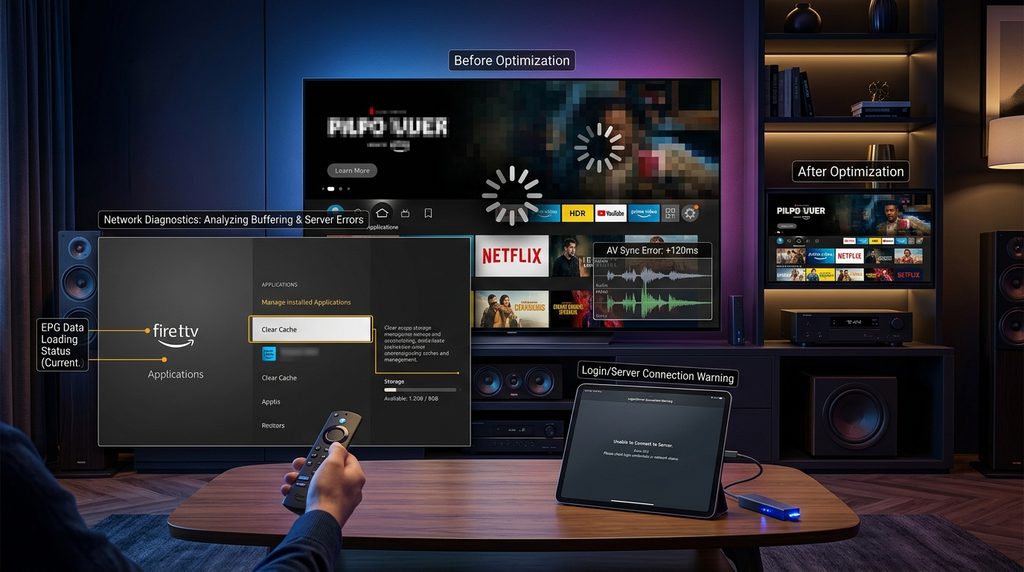
Accumulating temporary cached data over time degrades Firestick system speed and restricts available storage. Open Firestick Settings, select Applications, and click Manage Installed Applications to review installed software. Select your primary media player app and click Clear Cache to remove temporary files without erasing playlist settings.
Avoid clicking Clear Data unless you intend to completely reset your application back to factory conditions. Clicking clear data wipes out saved usernames, passwords, and custom channel favoriting lists. Regular cache maintenance keeps applications running swiftly while preserving configured settings.
Uninstalling unused sideloaded utilities and deleting leftover APK files frees up critical internal memory space. Applications such as Background Apps & Process List allow you to force close hidden applications running in background RAM. Keeping at least 1GB of free space ensures system firmware functions smoothly without interface lag.
Real-World Case Study and Expert Insights
To understand the real-world impact of migrating to modern streaming infrastructure, consider a practical household case study. A suburban family in Austin, Texas was paying $185 per month for traditional cable television bundles filled with unused bloatware channels. Seeking a modern alternative, they conducted thorough IPTV cost comparisons and decided to transition to digital media streaming on Firestick hardware.
The family purchased two Fire TV Stick 4K Max devices, unlocked developer permissions, and configured TiviMate using Xtream Codes API credentials. By pairing their media setup with an encrypted network connection and high-speed fiber internet, they completely eliminated broadcast buffering issues. Their total monthly television expenses plummeted from $185 to under $25, yielding annual savings exceeding $1,900 while increasing available high-definition channel selection.
“Transitioning our household to streaming hardware was the single best technology decision we made this decade. The channel loading speeds on our Firestick rival commercial cable boxes, while the customized program guides make navigating live sports effortless.”
— Marcus Vance, Home Technology Consultant
Exploring an extensive Nexott VOD library unlocked thousands of on-demand movies and TV series for the family without requiring separate streaming app fees. Should you ever decide to update your existing service or change device hardware, learning how to renew Nexott service ensures continuous entertainment access across all household screens. Modern hardware combined with fast player software delivers an unmatched home entertainment experience.
Frequently Asked Questions About Firestick IPTV Setup
Is a Firestick IPTV Setup Legal to Use in the United States?
Yes, installing media player software on a Firestick is completely legal. Media player applications function as empty tools that play user-provided content streams. Users must ensure they have legal rights to access the media streams loaded into the player app.
What Internet Speed Do I Need for Smooth Playback?
A minimum download speed of 25 Mbps is recommended for smooth high-definition 1080p live streaming. For uncompressed 4K Ultra HD broadcasts or multi-device households, 50+ Mbps ensures buffer-free viewing. Connecting via 5GHz Wi-Fi or Ethernet adapter optimizes throughput.
How Do I Fix Frequent Buffering on My Firestick?
To fix buffering, change your stream format from TS to M3U8 inside your player settings. Connect to a VPN to prevent ISP bandwidth throttling during peak viewing hours. Additionally, clear app cache regularly and switch to an Ethernet adapter.
Why Is Developer Options Missing on My Firestick Settings?
Amazon hides Developer Options by default on newer Fire OS updates. To reveal it, open Settings > My Fire TV > About and click your device name 7 times rapidly. Return to My Fire TV, and Developer Options will now appear.
Can I Use One Subscription on Multiple Firestick Devices?
Simultaneous stream limits depend entirely on your provider account plan. Single-connection accounts will reject logins if streamed on two devices at once. Selecting multi-room flexible IPTV pricing options allows concurrent household streaming.
How Do I Update Sideloaded Apps Like TiviMate or IPTV Smarters?
Sideloaded apps do not update automatically through the Amazon Appstore. To update, open Downloader and enter the latest APK code to install over the existing app. Updating directly preserves your existing playlists, logins, and favorited channel settings.
What Is the Difference Between Xtream Codes API and M3U Links?
Xtream Codes API uses a username, password, and server URL to organize content neatly. M3U links are single web addresses pointing to plain-text playlist files. Xtream Codes logins are faster to type and update EPG data more reliably.
Do I Need a VPN When Running IPTV on Firestick?
Using a VPN is strongly recommended to protect personal digital privacy and avoid ISP throttling. Encrypting traffic prevents internet providers from slowing down live stream traffic. A VPN also helps bypass regional geo-blocks on sports streams.
How Can I Get More Free Storage Space on Firestick?
To free up storage, uninstall unused applications under Manage Installed Applications in settings. Clear the cache for media apps like TiviMate and IPTV Smarters regularly. Always delete downloaded APK installer files after completing app installations.
How Do I Fix Electronic Program Guide (EPG) Loading Issues?
Fix blank EPG guides by opening player settings and selecting Refresh EPG manually. Verify that your system time matches your local time zone to fix offset issues. Ensuring your account has active EPG service links resolves listing errors.