Imagine you’re finalizing an important presentation, updating a project deadline, or writing a report when your internet connection suddenly disappears. For many professionals, students, and remote workers, this unexpected interruption can bring productivity to a complete stop. Fortunately, Nexott Offline Mode is designed to prevent exactly that scenario. By allowing you to continue working without an active internet connection, Nexott Offline Mode ensures your documents, projects, and essential tools remain accessible whenever you need them.
Whether you’re traveling, working from a remote location, dealing with unstable Wi-Fi, or simply looking for a distraction-free workspace, Nexott Offline Mode provides a reliable solution that keeps your workflow moving. Instead of waiting for your connection to return, you can continue editing files, organizing tasks, reviewing project data, and creating new content with confidence. Once you’re back online, Nexott Offline Mode automatically synchronizes your changes with your cloud workspace, eliminating the hassle of manual uploads or duplicate files.
In this complete guide, you’ll discover everything you need to know about Nexott Offline Mode, including its core features, installation process, step-by-step setup, productivity tips, security benefits, troubleshooting solutions, and best practices. By the end of this guide, you’ll know how to use Nexott Offline Mode to maintain productivity, protect your work, and stay efficient no matter where your work takes you.
What is Nexott Offline Mode?
Nexott Offline Mode is a standalone operational environment within the Nexott platform. It enables users to access core tools, documents, and applications without requiring a live connection to the Nexott servers. When activated, a local instance of your workspace is created on your device.
This local copy syncs with the cloud when you reconnect. All changes made offline are automatically integrated. The feature is designed for resilience, ensuring continuity in work.
Core Functionality and Features
The mode provides access to document editors, task managers, and note-taking tools. It supports basic file creation, editing, and organization. Advanced calculations and data processing are also available offline.
You can draft reports, update project timelines, and review analytics. A secure local cache stores your recent data and project state. This cache is encrypted to protect your information.
The Technical Architecture Behind It
The system uses a sophisticated client-side caching and sync engine. Upon activation, it downloads a pre-defined package of resources to your device. This package includes necessary libraries and a snapshot of your active workspace.
An intelligent conflict-resolution algorithm handles sync upon reconnection. It prioritizes user changes while merging cloud updates. This architecture ensures data integrity is never compromised.
Why You Absolutely Need Nexott Offline Mode
Internet reliability is not guaranteed, even in urban centers. A 2023 report indicated that professionals face an average of 3 connectivity disruptions per week. These interruptions can cost hours of productive time weekly.
Nexott Offline Mode directly addresses this modern work vulnerability. It transforms unplanned downtime into productive solo work sessions. It is a critical tool for anyone dependent on digital platforms for output.
Key Benefits and Advantages
The primary benefit is total continuity of work. You avoid the frustrating “waiting for connection” loop. Your momentum on complex tasks remains uninterrupted.
It also enhances data security during travel. Working offline reduces exposure to public network threats. Your sensitive drafts remain locally stored until you choose to sync.
Finally, it can improve focus by removing online distractions. The offline environment presents only the tools you need. This can lead to deeper concentration and higher quality output.
Real-World Use Case Scenarios
Consider a consultant preparing a client presentation on a flight. With no onboard Wi-Fi, Nexott Offline Mode allows them to finalize slides and charts. They land with a ready-to-deliver deck.
A field researcher in a remote area can collect and organize data directly into Nexott. They use offline forms and note templates. All data is ready for sync when they return to base.
A student in a library with unstable Wi-Fi can complete their essay draft. They access their research notes and writing tool offline. Their work is saved and synced later for collaboration.
How to Install and Activate Nexott Offline Mode
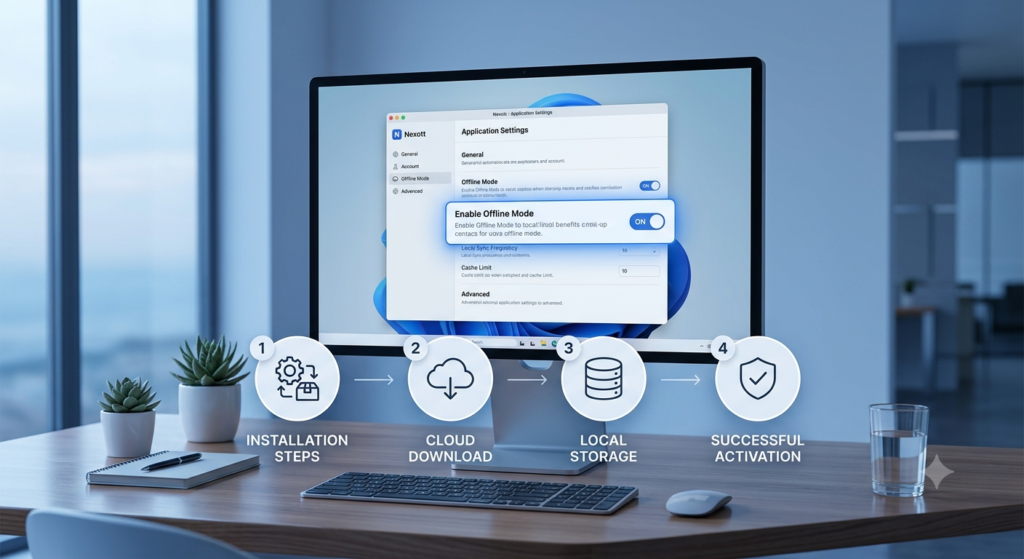
Installation is a straightforward process integrated into the main Nexott application. It does not require a separate download. The feature must be explicitly enabled within your workspace settings.
Prerequisites and System Requirements
Ensure you have the latest Nexott desktop application installed. The feature is available on Windows 10+, macOS 10.14+, and Linux (specific distributions). Your device should have at least 2GB of free storage for the offline cache.
A stable internet connection is initially required for setup. You must be logged into your active Nexott account. Administrator privileges on your device are not typically needed.
Step-by-Step Installation Process
Open the Nexott desktop application on your computer.
Navigate to the top-right menu and click “Settings.”
Select the “Workspace Features” tab from the settings menu.
Locate the “Offline Capabilities” section within the list.
Click the toggle switch next to “Enable Offline Mode.”
The system will begin downloading the necessary offline package. A progress bar will show the download status. Do not close the application during this process.
Once complete, a confirmation message will appear. Your device is now ready to operate in Nexott Offline Mode.
Verifying Successful Activation
To verify, you can temporarily disable your computer’s Wi-Fi or unplug the Ethernet cable. Close and reopen the Nexott application. You should see an indicator in the top status bar stating “Working Offline.”
You can also attempt to open a recent document or project. It should load without error messages related to connectivity. This confirms the local cache is active and functional.
A Step-by-Step Guide to Using Nexott Offline Mode
Using the mode effectively requires a slight shift in workflow habits. The following steps ensure you get the most value from it.
Step 1: Preparing Your Workspace for Offline Use
Before you anticipate going offline, open all the documents and projects you’ll need. Navigate to the specific files and task lists in your online session. This ensures they are included in the most recent cache snapshot.
The system prioritizes caching what is currently “open” or recently accessed. Manually opening key resources guarantees they are available. It’s a simple but crucial preparatory habit.
Offline Mode can initiate manually or automatically. For manual initiation, simply disconnect your device from the internet. The Nexott application will detect the loss of connection within seconds.
It will then switch seamlessly to the offline interface. For automatic initiation, you can set a schedule in settings. For example, trigger offline mode during your daily deep work block from 10 AM to 12 PM.
Step 3: Working Effectively in the Offline Environment
You will notice the interface remains largely identical. Some real-time collaboration icons (like live chat) will be greyed out. Features dependent on server-side processing will have a local alternative.
Focus on tasks that are conducive to solo work: writing, designing, analyzing, planning. Use the offline task manager to reprioritize your list. Create new documents using the available offline templates.
Step 4: Saving and Managing Work Offline
All work is saved automatically to the local cache. No “Save” button is required; the system operates continuously. You can, however, create manual backup snapshots via the “File > Export Local Snapshot” menu.
This is recommended for extremely critical work. Manage your offline files through the local file explorer. It mirrors your cloud workspace folder structure for intuitive navigation.
Step 5: Syncing Changes After Reconnecting
When you reconnect to the internet, reopen the Nexott application. The status bar will show “Syncing Changes…” as the first action. Allow this process to complete without interrupting your work.
A dialog box will summarize what was synced: new files, edited documents, updated tasks. Review this summary to confirm all offline work was captured. Your cloud workspace will now reflect all offline modifications.
Pro Tips for Maximizing Offline Productivity
Pre-Cache Your Templates: Open and then close your most-used document templates while online. This stores them in the cache, making offline creation faster.
Schedule Offline Sync Checks: Set a calendar reminder to reconnect and sync every 4-6 hours if working long offline. This prevents a massive, complex sync later.
Use Offline for Deep Work: Intentionally go offline during focused work blocks to eliminate notifications and online distractions.
Label Offline Drafts: Add “[Offline Draft]” to the titles of documents created offline. This helps you identify them quickly after sync for final review.
Monitor Cache Storage: Periodically check your local storage via settings to ensure the offline cache isn’t consuming excessive space.
Test Critical Workflows: Before a crucial offline session, test that your specific workflow (e.g., data analysis) functions offline as expected.
Best Practices for Getting the Most from Nexott Offline Mode
Using Nexott Offline Mode effectively is about more than simply disconnecting from the internet. Developing a few smart habits can dramatically improve your overall workflow and ensure that every offline session remains productive from beginning to end.
Before leaving a reliable internet connection, take a few minutes to prepare your workspace. Open the projects, documents, dashboards, and files you expect to use while offline. Because Nexott Offline Mode prioritizes recently accessed content, this simple habit helps guarantee that everything you need is available even without connectivity.
Another important best practice is keeping your Nexott Offline Mode workspace organized. Archive completed projects regularly, remove outdated files from your local cache, and keep frequently used resources easy to locate. A clean offline workspace reduces search time and makes your workflow significantly more efficient.
If you regularly travel for business or work remotely, consider testing Nexott Offline Mode before every important trip. Disconnect your device from Wi-Fi for a few minutes and verify that your essential projects, templates, and documents remain accessible. Performing this quick check helps prevent unpleasant surprises when you’re working without internet access.
Finally, make syncing part of your routine. Whenever you reconnect to the internet, allow Nexott Offline Mode to finish synchronizing completely before closing your application. This ensures your latest work is safely backed up to the cloud while making it immediately available to teammates collaborating on the same projects.
Common Nexott Offline Mode Errors & Solutions
Even robust features can encounter issues. Here are common errors and their solutions.
Error: “Offline Package Download Failed”
This usually indicates an interrupted network during initial setup. Solution: Ensure a stable connection and retry enabling the feature in settings. If it persists, clear the application’s temporary data and restart.
Error: “Local Cache Corrupted”
This can occur due to sudden device shutdowns during offline work. Solution: Use the “Recover Local Cache” tool under Settings > Troubleshooting. It will rebuild the cache from the last good sync point.
You may lose some very recent unsynced work. This underscores the importance of regular sync checkpoints.
Error: “Sync Conflict Detected”
This happens if the cloud version of a file was edited while you were editing the offline version. Solution: The conflict resolver will open, showing both versions. You can choose to keep your offline changes, the cloud changes, or manually merge them.
Expert Insight: Always communicate with collaborators about who will be editing a file offline to minimize conflicts.
Performance Issues: Slow Offline Operation
If the offline interface feels sluggish, your local cache may be too large. Solution: Navigate to Settings > Offline Capabilities > Clear Cache (this removes cached data but not your unsynced work).
Also, ensure your device meets the recommended storage and RAM requirements. Closing other large applications can also improve performance.
Alternative Offline Workspace Solutions
While Nexott Offline Mode is comprehensive, other tools offer offline capabilities. Understanding alternatives helps in making informed choices.
Comparison Table: Offline Digital Workspaces
Tool/Feature
Offline Capability
Sync Method
Primary Use Case
Nexott Offline Mode
Full workspace (docs, tasks, notes)
Automatic intelligent sync
Integrated project continuity
Google Docs Offline
Document editing only
Manual sync drive
Basic document drafting
Microsoft Office Local
Full suite applications
OneDrive sync
Traditional desktop editing
Notion Local Mode
Page editing & viewing
Background sync
Knowledge base work
Dropbox Smart Sync
File access & storage
Selective sync
File availability
When to Choose an Alternative
If your work is exclusively centered on one activity, like document writing, a simpler tool like Google Docs Offline may suffice. For teams deeply embedded in the Microsoft ecosystem, leveraging Office with OneDrive is logical.
Choose an alternative if your organization’s IT policy restricts the use of certain platforms. The key is to evaluate the breadth of offline tools you genuinely need.
Security and Privacy in Nexott Offline Mode
Security is one of the biggest advantages of Nexott Offline Mode, especially for professionals who frequently work outside traditional office environments. Whether you’re traveling, working from home, or using public transportation, Nexott Offline Mode allows you to continue working without relying on unsecured public Wi-Fi networks.
When operating offline, your files remain stored locally using encrypted storage mechanisms supported by your operating system. This means Nexott Offline Mode minimizes unnecessary network exposure while still preparing your work for secure synchronization once a trusted internet connection becomes available.
Organizations that handle confidential information also benefit from Nexott Offline Mode because employees can continue editing documents without transmitting sensitive information across unstable or public networks. Once a secure connection is restored, synchronization occurs automatically according to the permissions configured within the Nexott workspace.
To maximize protection while using Nexott Offline Mode, enable full-disk encryption, use strong account passwords, activate multi-factor authentication for your Nexott account, and keep both your operating system and Nexott application updated. Combining these practices with Nexott Offline Mode creates a reliable and secure productivity environment suitable for both personal and professional use.
Frequently Asked Questions (FAQs)
Is Nexott Offline Mode free to use?
Yes, it is a core feature included in all Nexott subscription plans, from Basic to Enterprise. No additional cost is required for activation or use.
Does offline work sync with my team’s online work?
Absolutely. Once you reconnect, all your changes are synced to the shared cloud workspace. Your team will see updates as if you were online, with conflict resolution if needed.
Can I use Nexott Offline Mode on mobile devices?
Currently, the full Offline Mode is only available on the desktop applications. The mobile apps support offline viewing of certain documents but not full editing capability.
How much storage does the offline cache use?
It typically uses 1-3GB, depending on the size and number of projects you keep active. You can manage and limit cached projects in the settings.
Is my data secure when working offline?
Yes. The local cache is encrypted using device-level security. Your offline data is as secure as your computer’s login protection.
What happens if my computer crashes while offline?
The recovery tool can rebuild the cache from the last stable point. Frequent manual snapshot exports can provide an extra layer of safety for critical work.
Can I collaborate offline with someone on the same network?
No. Nexott Offline Mode is designed for individual, isolated work. Real-time collaboration features require an active internet connection to Nexott servers.
Will my offline edits overwrite my team’s online edits?
Not automatically. The smart sync engine detects conflicts and gives you the choice. You can decide to keep your edits, theirs, or merge both.
Final Thoughts: Why Nexott Offline Mode Is Essential for Modern Productivity
In today’s connected world, losing internet access shouldn’t mean losing productivity. Nexott Offline Mode gives professionals, students, freelancers, and business teams the freedom to continue working without interruption, whether they’re traveling, working remotely, or facing unexpected network outages. By combining local file access, automatic synchronization, and intelligent offline caching, Nexott Offline Mode ensures your most important projects remain accessible whenever and wherever you need them.
Throughout this guide, we’ve explored how to install Nexott Offline Mode, prepare your workspace for offline use, troubleshoot common issues, and maximize efficiency with expert productivity tips. We’ve also covered the security advantages of working offline and how the platform automatically syncs your changes once an internet connection is restored. These features make Nexott Offline Mode more than just a backup option—it’s a practical solution for maintaining consistent workflows in any environment.
If your work depends on reliable access to documents, project management tools, and collaboration resources, enabling Nexott Offline Mode is one of the smartest improvements you can make to your digital workspace. Take a few minutes to activate the feature, test your offline workflow, and become familiar with its capabilities before your next trip or network interruption. With Nexott Offline Mode, you’ll spend less time worrying about connectivity and more time focusing on what truly matters—getting your work done efficiently, securely, and without limits.