7 Powerful Nexott Low Data Mode Tips to Save Data & Boost Speed (2026 Guide)
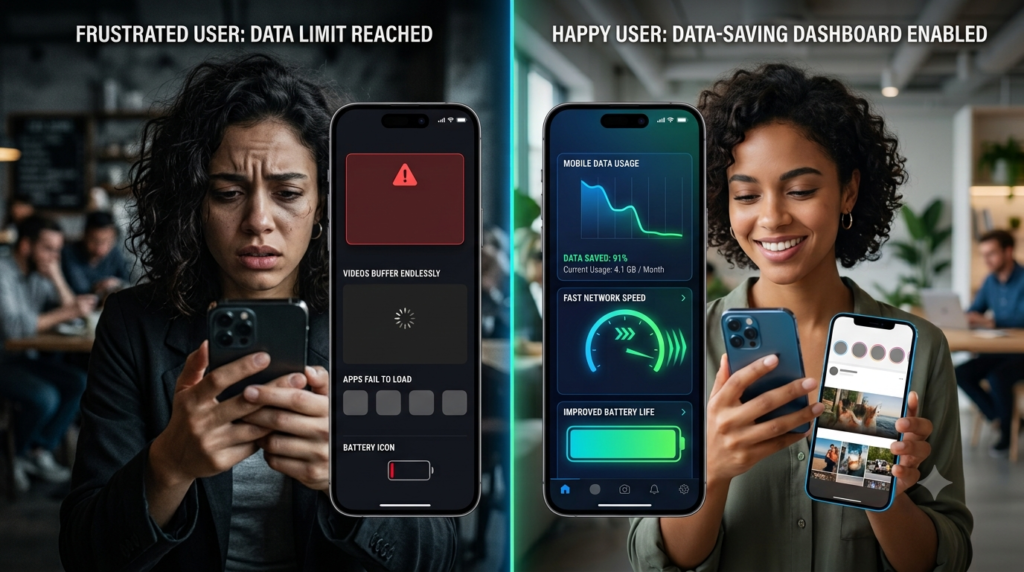
Table of Contents
Introduction
Are you tired of hitting your mobile data cap every month? Do videos buffer endlessly, turning your online experience into a frustrating wait? You’re not alone. Millions face soaring data usage from high-definition content and background app activity. This is where Nexott Low Data Mode becomes your secret weapon. This powerful feature helps reduce unnecessary data consumption while keeping your essential online activities running smoothly.
Whether you’re using a limited mobile data plan, traveling internationally, or simply trying to avoid expensive overage charges, Nexott Low Data Mode offers a practical solution. Rather than allowing every application to consume bandwidth in the background, it intelligently prioritizes the apps you’re actively using while limiting unnecessary downloads, syncing, and updates. The result is lower data usage, improved battery life, and a more responsive browsing experience.
In this complete guide, you’ll learn everything about Nexott Low Data Mode, including how it works, its biggest benefits, setup instructions for both Android and iPhone, advanced customization options, troubleshooting techniques, and expert tips for maximizing your mobile data plan. By the end of this guide, you’ll know how to reduce monthly data consumption, improve performance on slower networks, and make the most of every gigabyte.
What is Nexott Low Data Mode
Nexott Low Data Mode is an intelligent network setting designed to minimize cellular or Wi-Fi data usage. It functions by restricting background processes and optimizing data flow for foreground activities. While “Low Data Mode” is a native feature on iOS and Android, third-party solutions like those from Nexott often provide deeper, more granular control. The core principle is to ensure your essential tasks—like messaging, maps, and web browsing—work smoothly. Meanwhile, it curtails non-urgent data hogs like automatic updates and video pre-loading. Understanding this mode is the first step to ending data overage charges and performance lag for good.
Native Low Data Mode vs. Enhanced Solutions
Your phone’s built-in Low Data Mode is a great starting point. It applies broad restrictions to all apps and services running in the background. However, enhanced solutions, such as the Nexott Low Data Mode, offer a more sophisticated approach. These tools allow for per-app data limits, scheduled data saving, and detailed consumption analytics. Think of the native mode as a blunt instrument and advanced apps as a precision scalpel. For users with strict data caps or who travel frequently, this level of control is indispensable.
Who Needs to Use Low Data Mode?
This feature is not just for those with limited data plans. Frequent travelers who rely on expensive roaming data can save hundreds of dollars. Gamers and streamers can use it to prioritize their game connection over other apps. Even users on “unlimited” plans benefit, as many carriers throttle speeds after a certain high-speed data threshold. Essentially, anyone who wants more predictable billing and faster available speeds should consider activating Low Data Mode.
Key Benefits of Using Nexott Low Data Mode
Activating Nexott Low Data Mode delivers immediate benefits for anyone looking to reduce mobile data consumption without sacrificing everyday usability. Whether you’re using a limited mobile plan, traveling internationally, or simply trying to extend your monthly data allowance, Nexott Low Data Mode intelligently prioritizes essential network activity while reducing unnecessary background usage.
One of the biggest advantages of Nexott Low Data Mode is its ability to significantly reduce data usage generated by automatic app updates, cloud synchronization, and background refresh processes. Instead of allowing every installed application to consume bandwidth continuously, the feature ensures that only important tasks receive priority.
Beyond saving mobile data, Nexott Low Data Mode also contributes to longer battery life. Since your smartphone spends less time communicating with background services, both the processor and wireless radios consume less power throughout the day.
Users may also notice improved browsing responsiveness on congested cellular networks. Because Nexott Low Data Mode limits non-essential traffic, web pages, messaging applications, navigation services, and other active tasks often feel faster and more responsive, especially when network conditions are less than ideal.
How Does Nexott Low Data Mode Actually Work?
Understanding how Nexott Low Data Mode works helps users make better decisions about when to enable it. Rather than simply slowing your internet connection, Nexott Low Data Mode intelligently manages how applications communicate with the internet by prioritizing active tasks while delaying background activity.
When Nexott Low Data Mode is enabled, the operating system informs compatible applications that bandwidth should be conserved. As a result, automatic downloads, cloud synchronization, software updates, and background refresh operations are temporarily reduced or postponed until a less restrictive connection becomes available.
Many streaming services also recognize Nexott Low Data Mode and automatically reduce video quality or postpone content preloading. This allows users to continue watching videos while consuming considerably less mobile data.
Instead of blocking internet access, Nexott Low Data Mode creates a smarter balance between performance and efficiency, ensuring that your most important online activities continue functioning while unnecessary background traffic is minimized.
Technical Mechanisms Behind the Scenes
Technically, the mode employs traffic shaping and Quality of Service (QoS) rules. It can de-prioritize certain types of data packets, like those for syncing cloud storage. It also leverages more efficient data compression for web content when possible. For instance, images may load at a lower resolution initially, with an option to load the full version if you choose. This technical orchestration happens seamlessly, providing savings without constant user intervention.
What Activities Are Typically Restricted?
Understanding what gets limited helps set proper expectations. Common restricted activities include:
- Background App Refresh: Apps won’t update content until you open them.
- Automatic Updates: OS and app updates from stores are halted.
- Photo & Cloud Sync: Services like iCloud Photos or Google Drive pause syncing.
- Video Pre-loading: Streaming apps won’t download the next episode automatically.
- High-Quality Media: Streaming may default to standard definition instead of HD.
Step-by-Step Setup Guide for All Devices
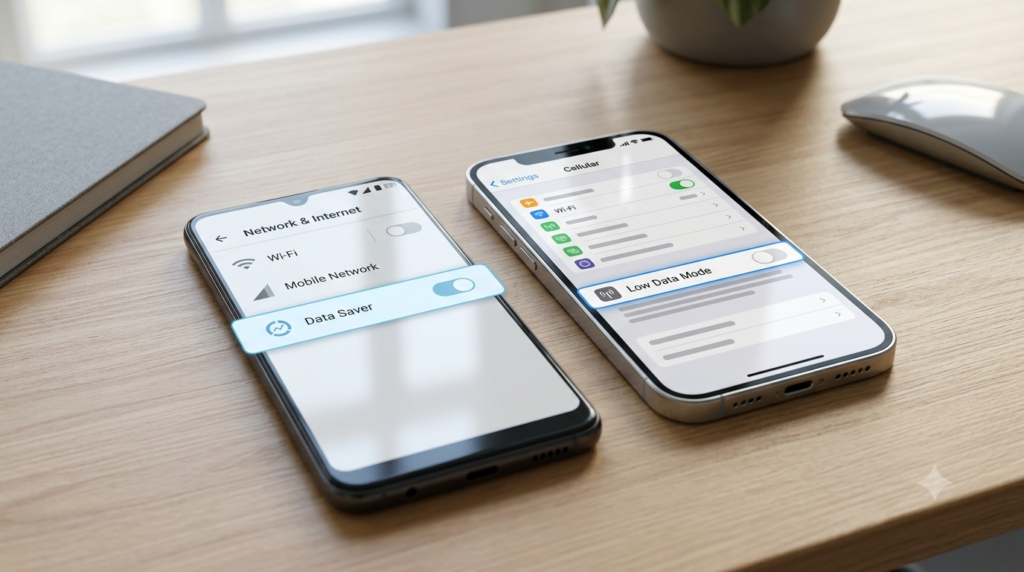
Setting up Low Data Mode is a quick process, but the exact steps vary by device and operating system. The following guides will help you activate it on any major platform. Remember, you can usually toggle this on for both cellular and Wi-Fi networks independently, giving you flexible control depending on your connection.
For iOS (iPhone & iPad)
- Open the Settings app on your device.
- Tap on Cellular or Mobile Data.
- Select Cellular Data Options (or your mobile plan name).
- Toggle on Low Data Mode. For Wi-Fi, go to Settings > Wi-Fi, tap the “i” next to your network, and toggle it on there.
For Android Devices
Android settings can vary by manufacturer (Samsung, Google Pixel, etc.). The most universal path is:
- Go to Settings > Network & internet > Data Saver.
- Toggle Use Data Saver to ON.
- You can tap on “Unrestricted data” to allow specific apps to bypass the restriction.
Pro Tip: On Samsung Galaxy phones, look for “Data Usage” in Settings and enable “Data Saving mode.” The functionality is identical but may be labeled differently.
Configuring Third-Party Apps like Nexott
For maximum control, consider a dedicated app. After installing a solution like Nexott, you’ll typically grant necessary permissions. You then set a daily or monthly data budget. The app’s dashboard lets you create rules for individual applications. For example, you can allow unlimited data for Zoom but restrict social media apps to 50MB per day. This granularity is perfect for families or business users with mixed needs.
Advanced Nexott Low Data Mode Settings & Customization
Although enabling Nexott Low Data Mode with a single tap provides immediate savings, advanced customization unlocks even greater control over your mobile data usage. Most devices allow you to combine Nexott Low Data Mode with application-specific settings to create a personalized data management strategy.
For example, you can allow navigation, messaging, or business applications to continue using background data while restricting social media, streaming, and cloud backup services. This flexibility allows Nexott Low Data Mode to reduce unnecessary consumption without interrupting essential daily activities.
Monitoring your monthly usage also becomes more effective when paired with Nexott Low Data Mode. By reviewing built-in analytics, users can quickly identify which applications consume the most bandwidth and apply additional restrictions where necessary.
Scheduling Nexott Low Data Mode during travel, busy workdays, or the final week of your billing cycle provides another effective way to avoid exceeding monthly data limits without constantly changing settings manually.
Per-App Data Limits and Rules
Both iOS and Android allow you to set exceptions. You can designate “mission-critical” apps to work normally. In Android’s Data Saver settings, you can set apps as “Unrestricted.” On iOS, while in Low Data Mode, some apps respect the system signal, but others offer in-app quality settings. Always check the settings within streaming, navigation, and communication apps for a “Data Saver” or “Limit mobile data” option.
Scheduled Data Saving
Why save data all the time if you only need it during work hours or while traveling? Advanced tools allow scheduling. You can set Low Data Mode to activate automatically during your billing cycle’s final week. Or, have it turn on during your daily commute when you’re away from Wi-Fi. This automation ensures savings without you having to remember to toggle settings on and off.
Monitoring and Analytics Dashboard
Knowledge is power. Use your phone’s built-in data usage tracker (in Cellular settings) or a third-party dashboard to monitor consumption. Identify the biggest data offenders over the last week or month. This data informs your rules. If you see a game consuming 2GB from background updates, you know to restrict it specifically. Regular review turns data management from a guess into a science.
Troubleshooting Common Problems
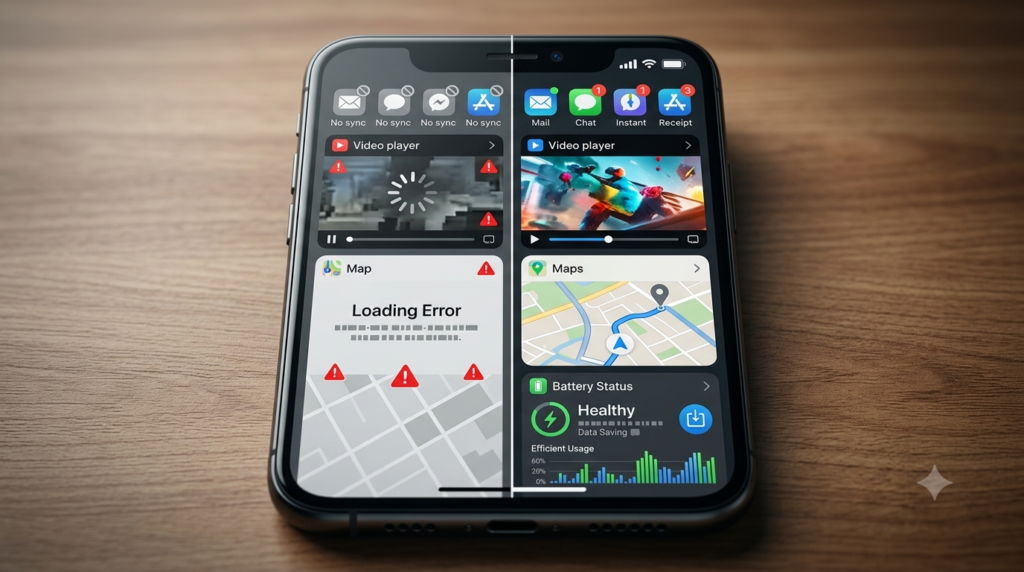
Sometimes, enabling Low Data Mode can cause unexpected issues. Don’t worry; most have simple fixes. The key is understanding the trade-off between data saving and functionality. If an app stops working correctly, it’s likely because it relies on background data. Here’s how to solve the most frequent problems without disabling the feature entirely.
1. Apps Not Syncing or Sending Notifications
Problem: Your email isn’t updating, or you’re missing instant messaging notifications.
Solution: This is the most common side effect. Navigate to your device’s background app refresh settings (iOS) or Unrestricted Data list (Android). Add the problematic app to the exception list. This allows it to use data normally while keeping restrictions on other apps.
2. Website Images or Videos Not Loading
Problem: Web pages look broken, or videos won’t play.
Solution: Some aggressive data-saving modes or browser settings block media. First, check if your mobile browser (like Chrome) has a “Data Saver” feature enabled separately and disable it. If the issue persists, try long-pressing on the broken image to see if there’s an option to load it. This is often a sign the mode is working very effectively.
3. Maps Navigation is Laggy or Unreliable
Problem: Google Maps or Apple Maps is slow to update your position.
Solution: Navigation apps need real-time data. Ensure your maps app is in the “Unrestricted” list. For best results, also download the offline map for your region or city over Wi-Fi before your trip. This drastically reduces the data needed for core navigation functions.
Alternative Data-Saving Methods & Apps
While Low Data Mode is powerful, it’s part of a broader data-management ecosystem. Combining it with other strategies creates a formidable defense against data overages. Consider these complementary methods to build a comprehensive data-saving plan.
Built-in Browser Data Compression
Browsers like Google Chrome and Opera have built-in data compression features. Chrome’s “Lite mode” routes traffic through Google’s servers to compress images and text. This can reduce data used by web browsing by up to 60%. Enable this in Chrome’s settings under “Data Saver.” It works alongside your system’s Low Data Mode for compounded savings.
Offline-First Apps and Content Downloading
Adopt an offline-first mindset. Download music, podcasts, videos, and maps on Wi-Fi. Streaming services like Spotify, Netflix, and YouTube allow premium users to download content. Use news apps that support offline reading. This shifts your data consumption from unpredictable mobile use to planned Wi-Fi use, giving you complete control.
Top Third-Party Data Manager Apps
For users who want extreme control, third-party apps offer features beyond the OS. My Data Manager provides superb tracking and forecasting. GlassWire creates beautiful graphs and alerts for unusual usage. NetGuard offers firewall-like control without rooting. Explore these options if your device’s native tools feel too limited. Remember, the goal is a seamless experience, so choose an app with a UI you find intuitive. You can find discussions on balancing control and convenience in communities like tech forums.
Pro Tips from Data Management Experts
Experts who manage mobile deployments for businesses have honed data saving to an art. Their tips go beyond basic settings and focus on sustainable, user-friendly habits. Implementing even a few of these can lead to dramatic, long-term reductions in your data footprint.
- Audit Monthly: The first Sunday of every month, review your previous month’s data usage. Identify any new or surprising apps on the list and adjust your rules accordingly.
- Leverage “Wi-Fi Assist” with Caution: On iOS, Wi-Fi Assist automatically uses cellular data if Wi-Fi is poor. This can bleed data. Consider disabling it in Settings > Cellular, especially if you have a low data cap.
- Set App-Specific Video Quality: Don’t rely on system-wide settings alone. In YouTube, set mobile data quality to 480p or 720p. In Netflix, select “Save Data” in the app settings. This gives you finer control.
- Use a VPN with Caution: While VPNs are great for privacy, they often prevent carrier-side data compression and can add overhead, increasing data usage. Only use a VPN on mobile data when absolutely necessary.
- Educate Family Members: If you share a family plan, one person’s habits can blow the cap. Use device-level Low Data Mode on children’s devices and educate everyone on downloading content over Wi-Fi.
Frequently Asked Questions (FAQs)
Does Low Data Mode slow down my internet?
It can slow down background tasks and non-essential updates, but it often improves speed for your active tasks by reducing network congestion for prioritized traffic.
Will I still get phone calls and texts with Low Data Mode on?
Yes. Calls and SMS/MMS texts do not use cellular data and are completely unaffected by Low Data Mode settings. You will receive them normally.
Can I use Low Data Mode on Wi-Fi?
Yes, both iOS and Android allow you to enable Low Data Mode for specific Wi-Fi networks. This is useful for public, metered, or slow Wi-Fi connections.
How much data can I actually save?
Savings vary, but most users report a 30-50% reduction in background and automatic data usage, which can be several gigabytes per month.
Does Low Data Mode stop all background activity?
No. Critical system functions and apps you’ve set as “Unrestricted” will continue background activity. It primarily targets non-essential syncing and updates.
Is it safe to use for online banking?
Yes, it is safe. Low Data Mode does not weaken encryption or security protocols. Your banking app’s data will be transmitted securely, though it may restrict background notifications.
Conclusion: Mastering Nexott Low Data Mode

Whether you’re trying to reduce monthly mobile bills, improve browsing performance, or simply gain greater control over your smartphone, Nexott Low Data Mode offers one of the easiest and most effective solutions available. Throughout this guide, we’ve explored how Nexott Low Data Mode minimizes background activity, improves battery life, prioritizes important applications, and helps prevent unnecessary mobile data consumption.
The true value of Nexott Low Data Mode comes from combining the feature with smart browsing habits, offline downloads, application-specific settings, and regular usage monitoring. Together, these strategies create a balanced mobile experience that remains fast, reliable, and affordable regardless of your network conditions.
As mobile applications continue consuming more bandwidth every year, learning how to configure Nexott Low Data Mode effectively becomes an essential skill for every smartphone user. Whether you’re using Android, iPhone, or an advanced third-party solution, Nexott Low Data Mode can help you extend your data plan, improve performance, and enjoy a more efficient mobile experience every day.