Nexott Digital Setup: 7 Powerful Ways to Boost Success
Published on February 10, 2026 • 18 min read
Table of Contents
Introduction
Are you tired of endless buffering, limited channel selections, and complicated installation processes that leave you frustrated? Unlocking the full potential of your home entertainment system starts with the correct Nexott digital setup. In the rapidly evolving world of digital streaming, having a reliable service is only half the battle; the way you configure your device determines the quality of your viewing experience. Whether you are a cord-cutter looking to save money or a tech enthusiast seeking crystal-clear 4K streams, this guide is your ultimate resource.
Nexott has emerged as a premium digital streaming solution, offering a robust library of live TV, Video-On-Demand (VOD), and exclusive sports content. However, to access these features without interruption, you need a precise digital configuration. Many users struggle with generic setups that lead to lagging audio, missing electronic program guides (EPG), or poor video resolution. This article eliminates the guesswork, providing a masterclass in optimizing your connection.
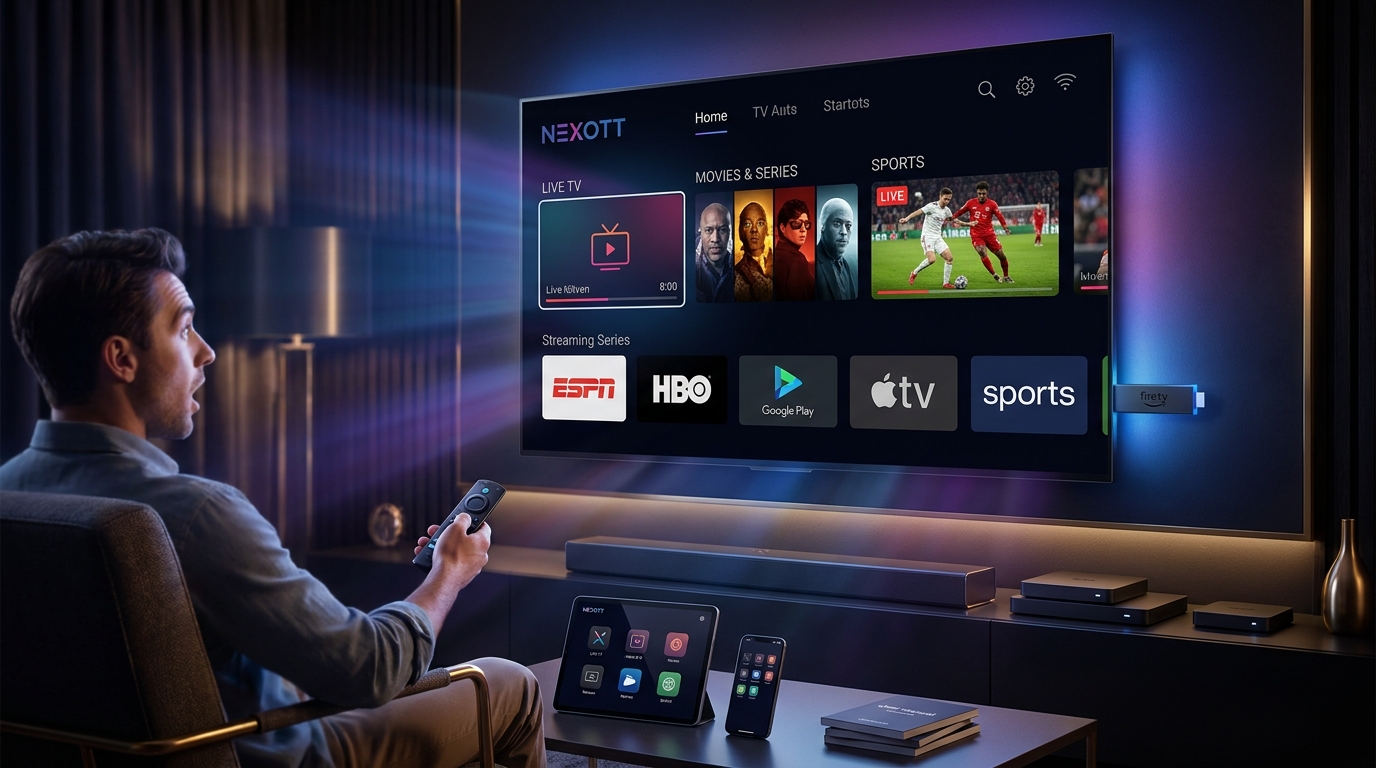
Whether you are using an Amazon Firestick, Android TV, or a Smart TV, mastering your Nexott digital setup ensures a seamless, cinematic experience. We will walk you through every step, from the initial pre-requisites to advanced customization, ensuring you get the most out of your subscription. Below is the roadmap to your perfect streaming setup.
What You Will Learn in This Guide:
Comprehensive Installation: Step-by-step instructions for Firestick, Android, and iOS.
Performance Optimization: How to eliminate buffering and improve picture quality.
Troubleshooting: Quick fixes for login errors, audio sync issues, and blank screens.
Security: Why a VPN is critical for your Nexott digital setup.
What is Nexott Digital? Understanding Your Service
The Evolution of Digital Streaming and Nexott
Digital streaming has transformed from a niche hobby into the primary source of entertainment for millions of households worldwide. Over-The-Top (OTT) technology allows content to be delivered directly over the internet, bypassing traditional satellite and cable infrastructure. Nexott stands at the forefront of this revolution, utilizing high-performance servers to deliver uncompressed digital signals to your device.
Unlike traditional cable, which relies on physical lines, a Nexott digital setup utilizes your internet connection to pull data from global servers. This architecture allows for a significantly larger channel lineup and on-demand library than legacy providers could ever offer. By understanding this difference, users can better appreciate the importance of internet stability and device compatibility in their setup.
Key Features of a Proper Nexott Setup
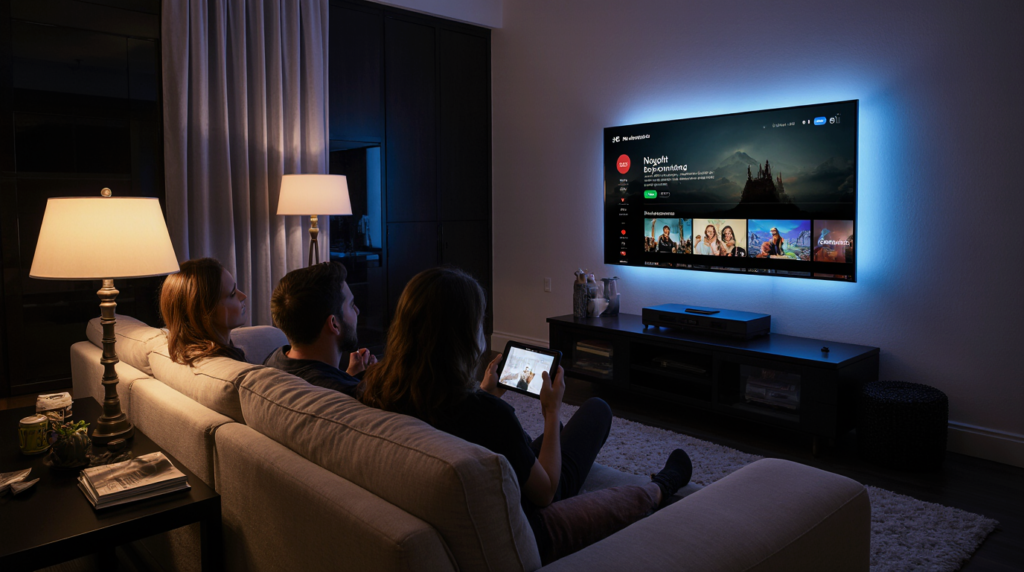
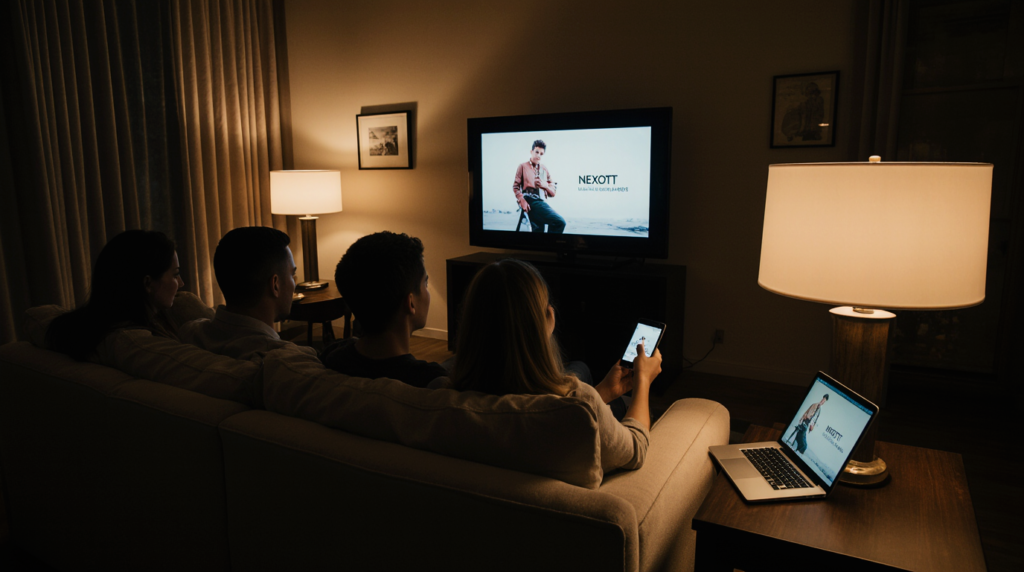
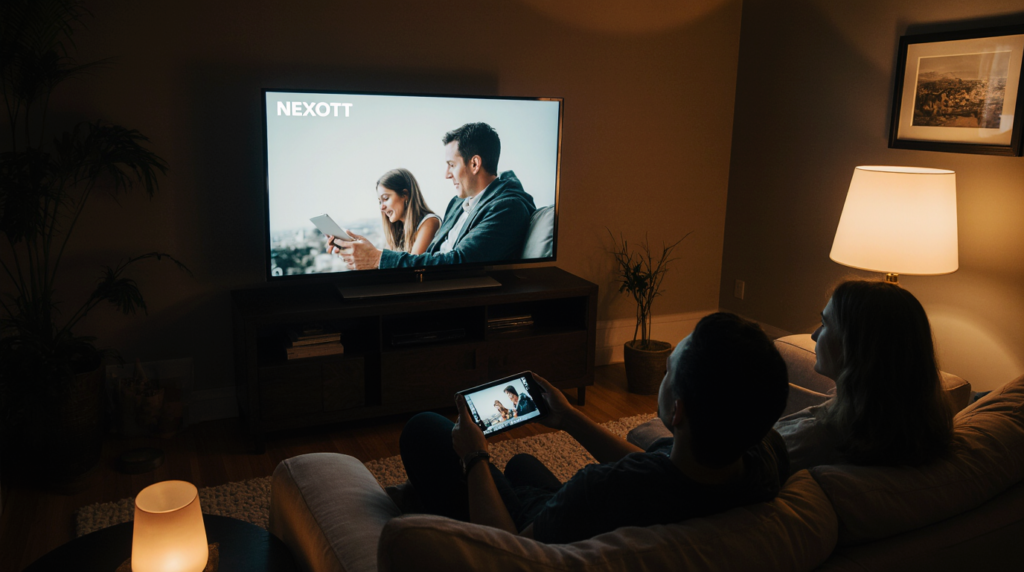
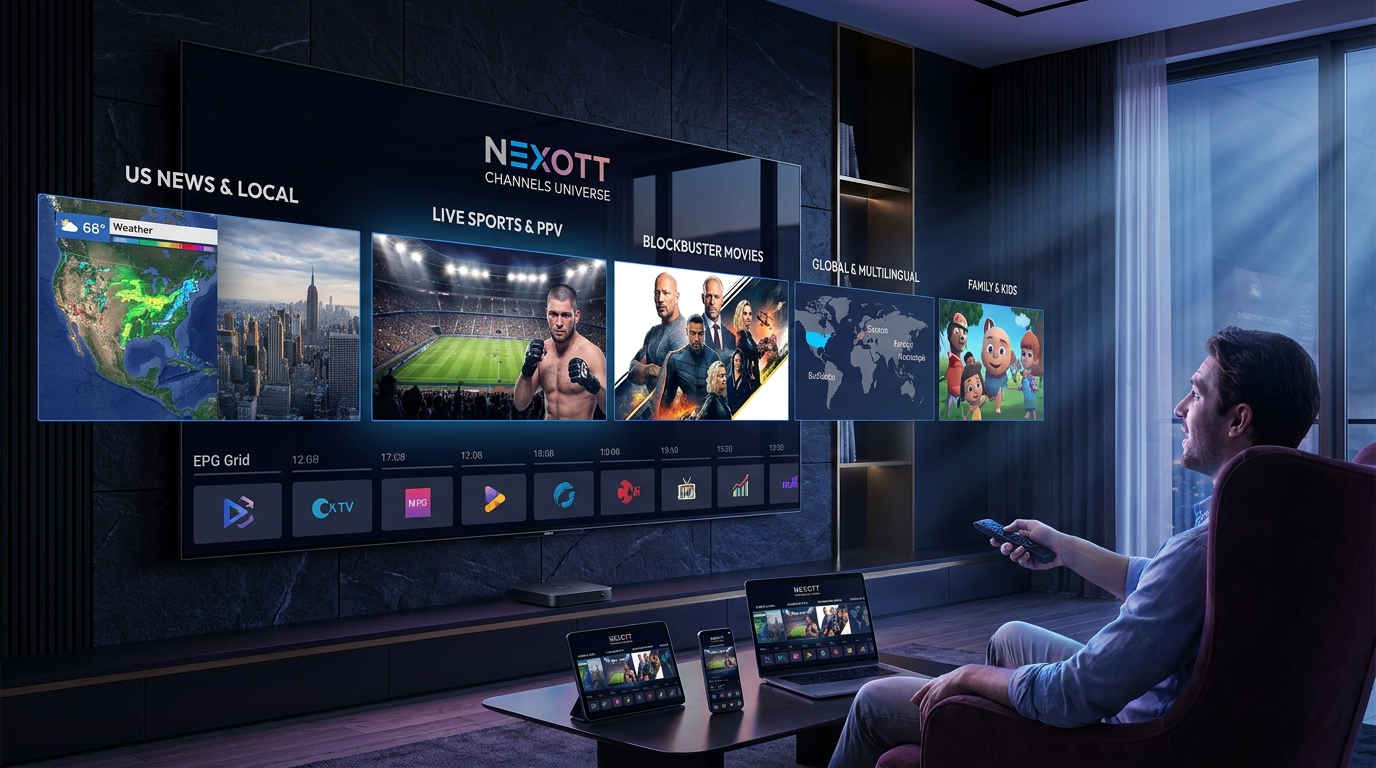
A correctly configured Nexott system offers features that rival and often exceed expensive cable packages. One of the standout features is Multi-Screen capability, which allows users to watch their favorite sports on the big screen while streaming news on a mobile device simultaneously. This flexibility is built into the core of the Nexott architecture but requires specific app settings to function correctly.
Another critical feature is 4K/FHD Quality, which is only achievable if your bitrate settings are optimized during the setup process. Furthermore, the Electronic Program Guide (EPG) is the backbone of the user interface, providing real-time schedules and program information. A successful Nexott digital setup ensures this data syncs automatically, so you never miss a show.
Is Nexott Legal? (Safety & Compliance)
Navigating the legal landscape of IPTV and streaming services can be confusing for new users. It is important to note that Nexott operates as a technology provider, and users must ensure they are accessing content in compliance with their local copyright laws. Legitimate services pay licensing fees to distribute content, whereas “cracked” or unauthorized versions do not.
When performing your Nexott digital setup, always use verified login credentials provided directly by the service. Avoid third-party “resellers” offering “lifetime” subscriptions for suspiciously low prices, as these are often scams or illegal operations. Maintaining a secure and legitimate setup protects you from service shutdowns and potential legal issues.
Pre-Installation Checklist: Preparing for Nexott Digital Setup
Before diving into the technical installation, you must ensure your environment is ready to handle high-definition streaming. Skipping these steps is the number one cause of buffering and playback errors.
Internet Speed Requirements
Digital streaming is bandwidth-intensive, especially when watching 4K content or live sports. A stable connection is more important than a fast peak speed; jitter or packet loss can ruin a stream even on a gigabit connection. Below are the minimum recommendations for a stable Nexott digital setup:
SD Content (480p): Minimum 5 Mbps download speed.
HD Content (1080p): Minimum 10-15 Mbps download speed.
Tip: Always test your speed directly on the streaming device, not just on your phone. WiFi signals can degrade significantly behind a TV cabinet.
Why You Need a VPN for Nexott
Your Internet Service Provider (ISP) can see everything you stream, and they often “throttle” or slow down connection speeds during peak hours if they detect high-bandwidth streaming. To prevent this, a Virtual Private Network (VPN) is essential for your Nexott digital setup. A VPN encrypts your traffic, making it impossible for your ISP to throttle your connection based on your activity.
Furthermore, some content may be geo-restricted based on your location. A VPN allows you to mask your IP address, granting you access to the full Nexott library regardless of where you are in the world. We recommend using protocols like WireGuard for the fastest streaming speeds.
Compatible Devices
The beauty of a Nexott digital setup lies in its versatility across hardware platforms. While almost any device with a screen can work, some provide a significantly better “living room” experience. The most popular devices include:
Amazon Firestick / Fire TV Cube: The most recommended device due to its low cost and ease of “side-loading” apps.
Android TV Boxes: Devices like the Nvidia Shield offer the highest performance for 4K upscaling.
Smart TVs: Samsung and LG TVs (running Tizen or WebOS) are supported but may require specific app workarounds.
Mobile Devices: iOS and Android phones are perfect for viewing on the go.
Step-by-Step Nexott Digital Setup on Amazon Firestick
The Amazon Firestick is the most popular device for Nexott users due to its affordability and open Android architecture. However, the Nexott app is not found in the official Amazon App Store, so you must “sideload” it. Follow these instructions precisely.
Step 1: Preparing the Firestick (Developer Options)
To install third-party applications, you must first grant your Firestick permission to do so. Start by navigating to the Settings gear icon on the far right of your home screen. Scroll down and select My Fire TV.
Inside this menu, look for Developer Options; if you do not see it, click on About, then highlight the name of your device (e.g., “Fire TV Stick 4K”) and click the select button on your remote 7 times quickly. You will see a notification saying, “You are now a developer.” Go back one screen, open Developer Options, and turn on Apps from Unknown Sources.
Step 2: Installing the Downloader App
The “Downloader” app is the bridge between your Firestick and the installation files needed for the Nexott digital setup. Go to the Firestick Search icon (magnifying glass) and type “Downloader.” It is an orange icon app.
Click Download or Get to install the app. Once installed, open it and grant the necessary permissions to access files on your device. This permission is required to save the APK (Android Package Kit) file we are about to download.
Step 3: Downloading the Nexott APK
With Downloader open, you will see a URL bar in the center of the screen. This is where you will enter the direct download code for the Nexott app. If you have been provided a specific 6-digit shortcode by your provider, enter it here (e.g., 123456) and click Go.
If you do not have a shortcode, you can enter the direct URL provided in your welcome email. The Downloader will connect to the server and begin downloading the Nexott digital setup file. Once the download is complete, a prompt will appear asking if you want to install the application; select Install.
Step 4: Login and Configuration
After installation, click Open to launch the Nexott app. You will be greeted by a login screen asking for your credentials. Most Nexott digital setup configurations use the Xtream Codes API, which requires three pieces of information:
Username: Found in your subscription email.
Password: Case-sensitive, so type carefully.
Server URL: The address of the Nexott portal (e.g., http://line.nexott.net:8080).
Enter these details and click Login. The app will take a moment to download the channels, movies, and series lists. Once the dashboard loads, your Nexott digital setup on Firestick is complete.
How to Configure Nexott Digital Setup on Android Devices
Android TV boxes (like Nvidia Shield, Chromecast with Google TV) and Android smartphones offer a more straightforward installation process than Firesticks. The open nature of the Android ecosystem makes the Nexott digital setup highly flexible.
Installation via Google Play Store
In some regions, a branded version of the Nexott app may be available directly on the Google Play Store. Open the Play Store on your device and search for “Nexott Digital” or “Nexott Player.” If the official app appears, simply click Install.
Once installed, the setup process mirrors the Firestick method: enter your Username, Password, and Server URL. Using the official store version ensures you receive automatic updates, keeping your Nexott digital setup secure and optimized without manual intervention.
Sideloading on Android TV Boxes and Phones
If the app is not in the Play Store, you can sideload it easily. On an Android phone, simply open your web browser (Chrome) and navigate to the APK download link provided by Nexott. Tap the file to install, granting permission to “Install from Unknown Sources” when prompted by Chrome.
For Android TV boxes, you can use the “Downloader” app (available in the Play Store) just like on Firestick. Alternatively, you can download the APK on a USB drive using your computer, plug the USB drive into your Android Box, and use a File Manager app to execute the installation. This method is preferred for users who want to keep an offline backup of their Nexott digital setup files.
Optimizing the Player Settings
Once logged in, navigating to the Settings menu within the app is crucial for performance. Look for an option labeled Decoder or Player Settings. You will typically see options for Hardware (HW) and Software (SW) decoding.
For most modern Android devices, select Hardware+ or HW Decoder. This offloads the video processing to the device’s graphics chip, resulting in smoother 4K playback and less battery drain on mobile devices. If you experience choppy playback during your Nexott digital setup, try toggling this setting to SW, although this is rarely necessary on newer devices.
Nexott Setup for Apple Devices (iOS & tvOS)
Apple’s ecosystem is more closed than Android’s, making a direct APK installation impossible. However, you can still achieve a perfect Nexott digital setup using third-party player applications that act as a “shell” for your service.
Using Third-Party Players (IPTV Smarters / GSE)
Go to the Apple App Store on your iPhone, iPad, or Apple TV and search for “IPTV Smarters Pro,” “GSE Smart IPTV,” or “UHD IPTV Player.” These apps are legitimate media players that do not contain content until you configure them. Download one of these players to begin your Nexott digital setup.
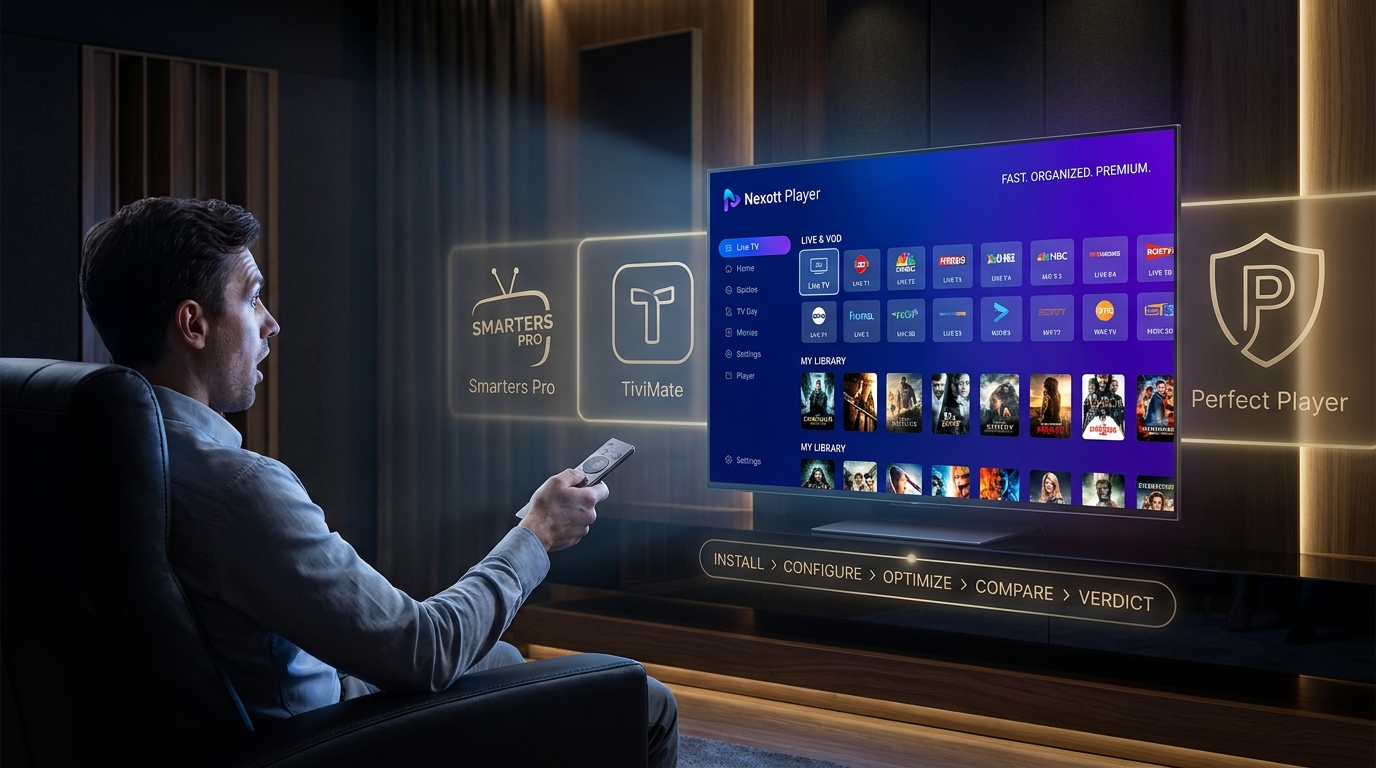
We recommend IPTV Smarters for its user-friendly interface that closely mimics the native Nexott experience. It supports the Multi-Screen feature and offers a robust EPG layout that looks great on both iPads and large Apple TVs.
Entering Your Credentials
Open the downloaded app and select “Login with Xtream Codes API.” You will enter the same Nexott credentials (Username, Password, URL) used on other devices. Alternatively, if the app only supports “M3U Playlist” URLs, you will need the long-form link found in your welcome email.
Once entered, the app will sync with the Nexott servers. Note that on iOS, background app refresh should be enabled to ensure the EPG stays up to date. This method allows you to enjoy the full Nexott digital setup without needing to “jailbreak” your Apple device.
Screen Mirroring vs. Native App
If you do not have an Apple TV box but have a smart TV that supports AirPlay, you can stream Nexott on your iPhone and mirror it to the TV. While convenient, this is not the optimal Nexott digital setup for long viewing sessions, as it drains your phone battery and occupies the device.
For the best quality, we always recommend installing a native app (like Smarters) directly on the Apple TV box. This ensures the device uses its own ethernet or WiFi connection, freeing up your phone and providing a true 4K experience without the compression artifacts often seen in Screen Mirroring.
Smart TV Configuration (Samsung & LG WebOS)
Smart TVs running Tizen (Samsung) or WebOS (LG) are notoriously difficult for custom apps because they do not use Android. However, you can still achieve a sleek Nexott digital setup using specific store applications.
Using the Smart IPTV (SIPTV) App
Go to your TV’s app store and search for an app called Smart IPTV (often abbreviated as SIPTV), Nanomid, or IBO Player. Install the app and open it. You will see a MAC Address displayed on the screen (e.g., aa:bb:cc:dd:ee:ff).
Write this MAC address down. You must then go to the app developer’s website (e.g., siptv.eu) on your computer or phone. Enter your TV’s MAC address and your Nexott M3U Playlist URL into the website’s upload form and click “Send.” Restart the app on your TV, and your channels will appear. This “remote injection” method is the standard Nexott digital setup for Smart TVs.
Using Nanomid or TiviMate (Alternatives)
If SIPTV is not available, Nanomid is a strong alternative that offers a more modern interface and better support for subtitles and audio tracks. The setup process is identical: install the app, note the ID, and upload your playlist via their website.
Unfortunately, the popular TiviMate app is currently Android-only and cannot be installed directly on Samsung or LG TVs. If you desire the TiviMate interface for your Nexott digital setup, your best option is to purchase a cheap Firestick to plug into your Smart TV, bypassing the TV’s native operating system entirely.
Troubleshooting Your Nexott Digital Setup
Even the perfect setup can encounter hiccups. Here are the most common issues and how to fix them instantly.
“Nexott Login Failed” Error
The most common barrier to a successful Nexott digital setup is a simple typo. The login system is case-sensitive. Users frequently confuse the capital letter ‘I’ with the lowercase ‘l’, or the letter ‘O’ with the number ‘0’. Double-check your welcome email.
Also, verify your subscription status. If your account has expired, the server will reject the login attempt immediately. If you are sure the details are correct, try resetting your WiFi router; sometimes a “stale” IP connection can block the authentication handshake.
Fixing Buffering and Lagging
Buffering is the enemy of streaming. If you experience this, first clear the cache of your app. Go to Settings > Applications > Nexott > Clear Cache. Do not click “Clear Data,” as this will erase your login details.
If buffering persists, try changing the Stream Format in the app settings from .ts to .m3u8 or vice versa. Additionally, rebooting your router can clear network congestion. If you are using a VPN, try switching to a different server location (e.g., from New York to Chicago) to find a less congested route for your Nexott digital setup.
EPG (TV Guide) Not Loading
A missing TV guide makes browsing channels difficult. To fix this, go to the Settings menu inside the Nexott app and look for EPG Settings. Click on Refresh EPG or Update Guide.
Depending on the size of the channel list, this may take up to 5 minutes. If it still fails, ensure your Time and Date settings on the device (Firestick/Android) are set to “Automatic.” If your device time is out of sync with the server time, the EPG data will fail to populate your Nexott digital setup.
Audio Sync Issues
If the audio is ahead of or behind the video, it is a decoding issue. While watching a stream, press the OK or Select button to bring up the on-screen display (OSD). Look for an “Audio” or “Speaker” icon.
Most apps have an Audio Offset slider. Adjust this in milliseconds (ms) until the lips match the sound. Alternatively, switching the decoder from HW to SW (as mentioned in the Android section) often instantly resolves sync issues in a Nexott digital setup.
Advanced Features & Customization
Creating a Favorites List
With thousands of channels available, scrolling becomes tedious. Optimize your Nexott digital setup by creating a Favorites group. Long-press the Select button on any channel name to bring up a context menu, then choose Add to Favorites. You can then access this custom list directly from the main dashboard, saving you time.
Parental Control Setup
Nexott offers content for all audiences, but you may want to restrict access to certain categories. In the app settings, look for Parental Controls. You can set a 4-digit PIN code that must be entered to access specific categories (like Adult or VOD). This is a vital step for a family-friendly Nexott digital setup.
Multi-View (Split Screen) Setup
For sports fans, Multi-View is a game-changer. If your device is powerful enough (like a Fire TV Cube or Nvidia Shield), you can enable Multi-View to watch up to 4 streams at once. Open a channel, then look for the “Multi-View” button in the player menu. Select a second channel to add it to the screen. Note that this requires a very strong internet connection, as you are essentially running multiple Nexott digital setups simultaneously.
Nexott vs. Competitors: Is It the Best Choice?
Is the effort of a custom digital setup worth it? Let’s compare Nexott to the alternatives.
Feature
Nexott Digital Setup
Generic IPTV
Traditional Cable
Cost
Low (Monthly/Yearly)
Very Low
High ($100+/mo)
Setup
Moderate (10-15 mins)
High Difficulty
Professional Install
4K Availability
High
Inconsistent
Limited
Support
Dedicated Support
Non-Existent
Phone Support
Reliability
99.9% Uptime
Frequent Buffering
99.9% Uptime
Why Choose Nexott Over Free Streams?
Many users try to get by with free streaming sites, but these are plagued by malware, invasive pop-ups, and streams that cut out mid-game. A Nexott digital setup provides a “cable-like” reliability with the flexibility of the internet. The small cost is an investment in stability, security, and high-definition quality that free streams simply cannot match.
Frequently Asked Questions (FAQs)
How do I update my Nexott digital setup?
If you installed via the Google Play Store, updates are automatic. If you used the Downloader app (sideloaded), you must periodically visit the download URL to grab the latest APK file and install it over the old one.
Can I use Nexott on multiple devices with one subscription?
This depends on your specific plan. Most standard plans allow for 1 or 2 concurrent connections. Using more connections than you paid for will result in the Nexott digital setup blocking one of the streams automatically.
Is a VPN mandatory for Nexott?
While the service will work without one, a VPN is highly recommended to prevent ISP throttling and to protect your privacy. It ensures your Nexott digital setup remains smooth during peak internet usage hours.
What is the URL for the Nexott digital setup downloader?
The URL changes occasionally to ensure security. Always refer to the welcome email sent immediately after your subscription purchase for the current active shortcode or URL.
Does Nexott offer a free trial?
Many authorized distributors offer a 24-hour trial. This is the perfect way to test your Nexott digital setup and internet compatibility before committing to a longer subscription.
Conclusion
Mastering your Nexott digital setup is the key to unlocking a world of limitless entertainment. While the initial configuration on a Firestick or Android device may seem technical, following this guide ensures you avoid common pitfalls like buffering and installation errors. By investing twenty minutes in a proper setup—securing a VPN, optimizing your decoder, and organizing your favorites—you guarantee a premium, future-proof viewing experience.
Don’t settle for mediocre streaming. Ensure your internet is up to speed, grab your remote, and follow Step 1 of our guide today. Your ultimate 4K entertainment hub awaits.